Bookmarks
QField allows you to save, organize, and navigate to spatial bookmarks across sessions and projects. By default, bookmarks display as marker overlays on the map canvas, appear in search bar queries, and list inside a dedicated Bookmarks panel.
Project Bookmarks vs. User Bookmarks
QField categorizes spatial bookmarks into two types:
- User Bookmarks: Created directly inside QField on mobile devices. User bookmarks persist across local projects and can be edited, grouped by color, or exported to GeoPackage files.
- Project Bookmarks: Embedded inside QGIS project files (
.qgsor.qgz) on desktop computers. Project bookmarks display under the Project bookmarks section header in the list view and remain read-only in QField.
Creating Project Bookmarks in QGIS
:material-desktop: Desktop preparation
Workflow
- Open your project in QGIS and navigate to your target spatial extent.
- Press Ctrl + B or navigate to View > New Spatial Bookmark....
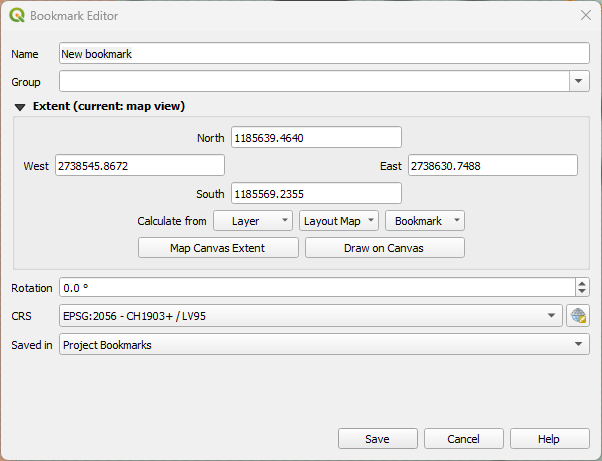
- Enter a bookmark name, group, and map extent in the QGIS Spatial Bookmarks Manager.
- Save your project and synchronize it to QField.
Viewing and Accessing Bookmarks
Fieldwork
Interact with spatial bookmarks in QField using two methods:
Map Overlays
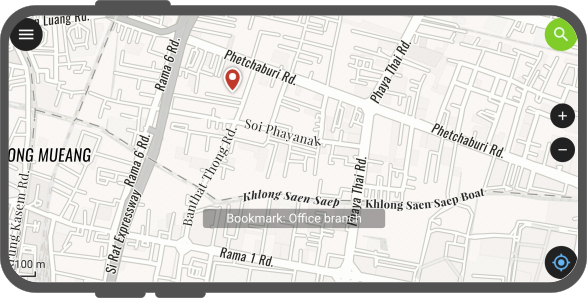
Bookmarks display directly on the map canvas as colored marker pins:
- Single tap: Displays the bookmark name label.
- Double tap: Centers and zooms the map canvas to the bookmark extent.
Bookmark List Panel
Fieldwork
QField includes a dedicated side drawer to manage and browse bookmarks.
Workflow
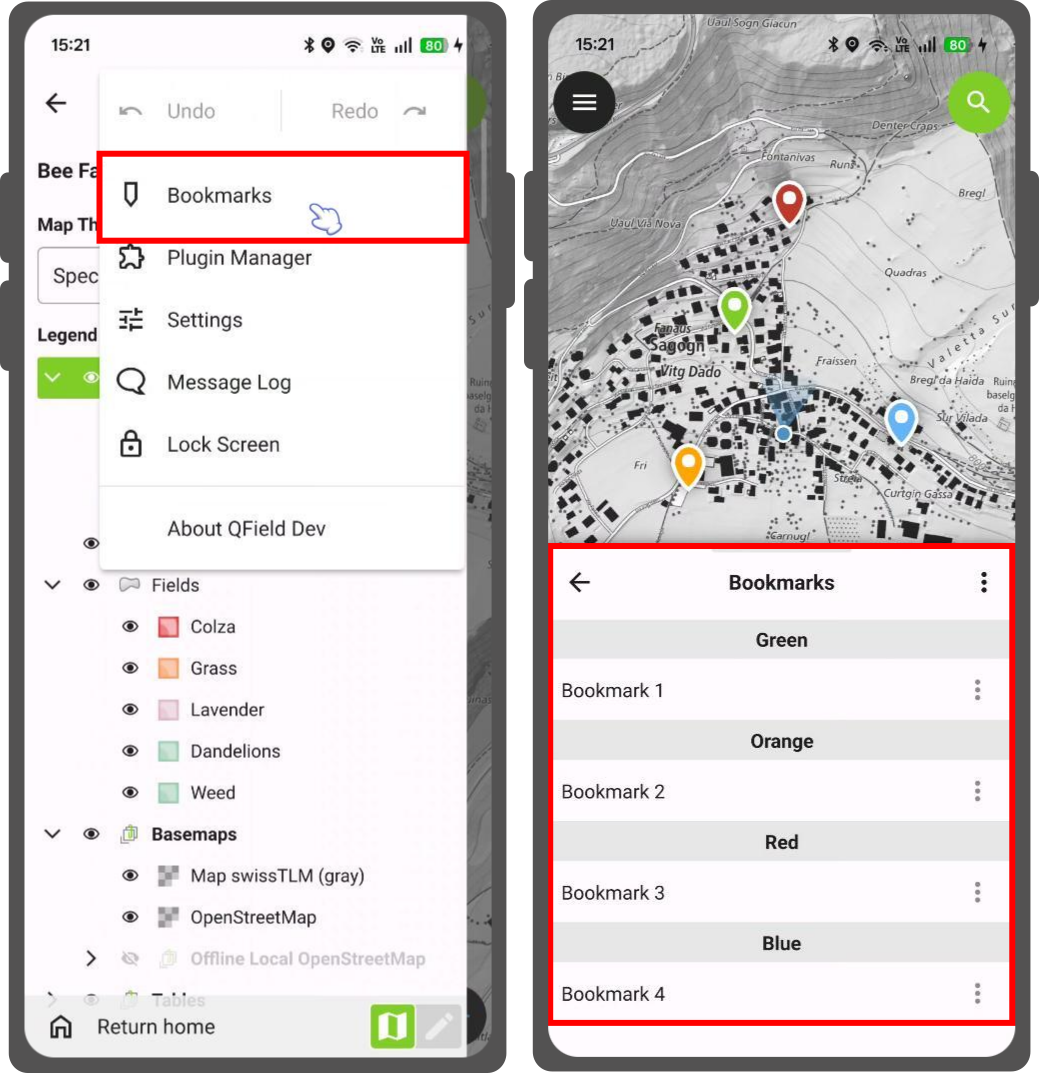
- Open the Side Dashboard from the map canvas.
- Tap the three-dotted menu (⋮) and select Bookmarks.
- Browse bookmarks categorized by color groups (Green, Orange, Red, Blue) or under the Project bookmarks header.
- Tap any bookmark entry in the list to pan and zoom directly to its location on the map canvas.
Adding a New Bookmark
Fieldwork
Bookmark locations capture target coordinates and active map scales to preserve zoom levels.
Option 1: Long-Press on the Map
Workflow
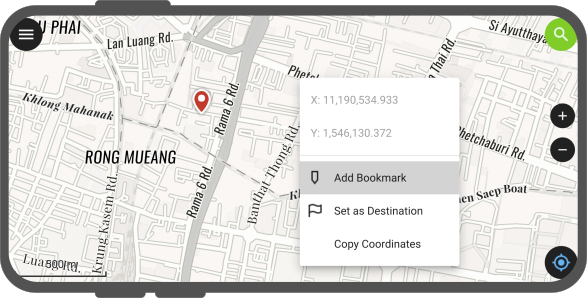
- Long-press the map canvas at the target location.
- Tap Add Bookmark in the context menu.
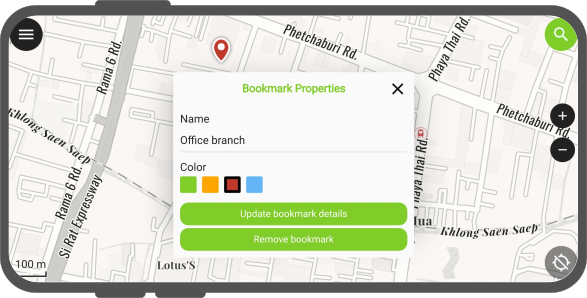
- Enter a bookmark name and select a color group (Green, Orange, Red, Blue).
Option 2: Location Pie Menu
Workflow
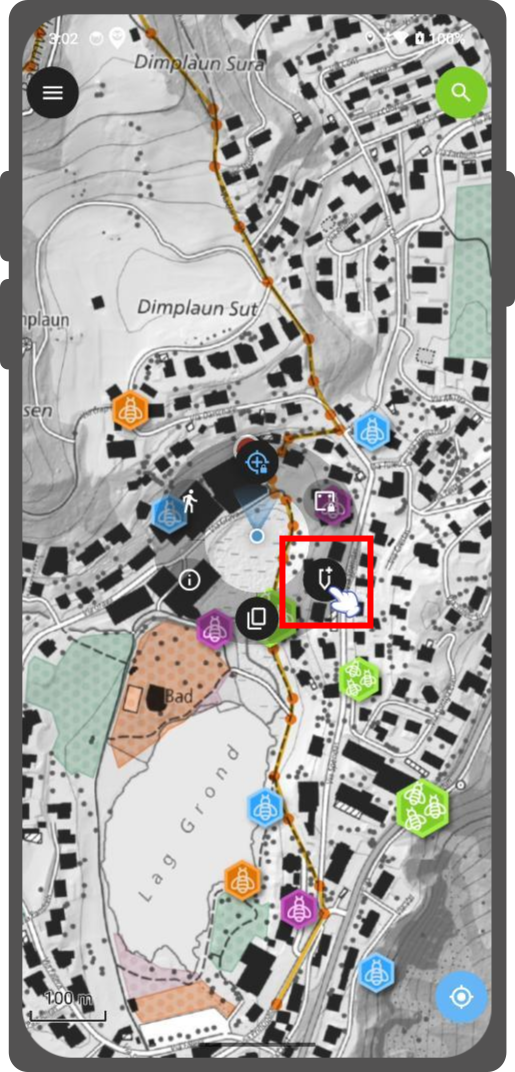
- Tap your current location marker on the map canvas.
- Tap the bookmark icon in the bottom-right corner of the pie menu.
- Enter a bookmark name and select a color group.
Managing and Exporting Bookmarks
Fieldwork
User-created bookmarks can be edited, copied, deleted individually or in batches, and exported to standalone GeoPackage datasets.
Individual Bookmark Actions
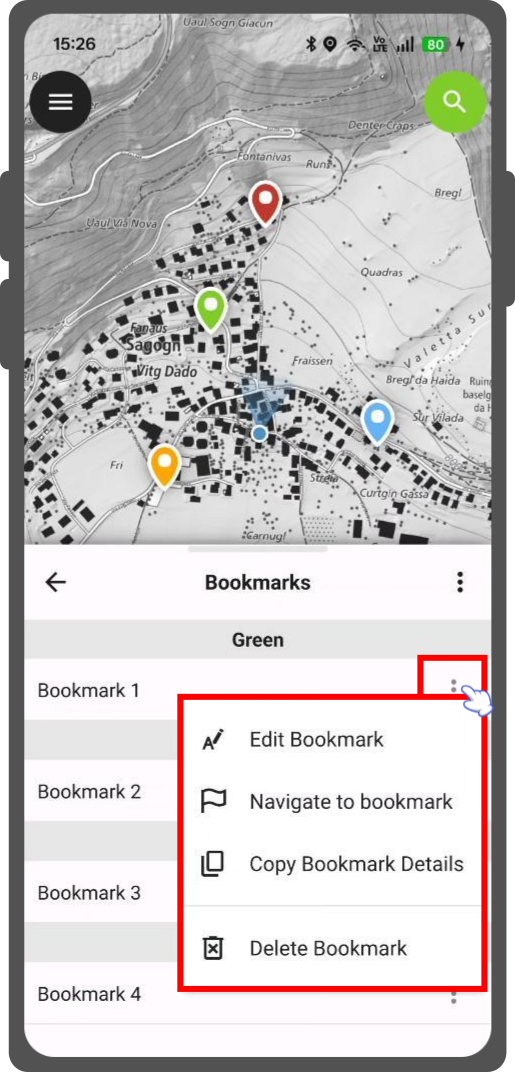
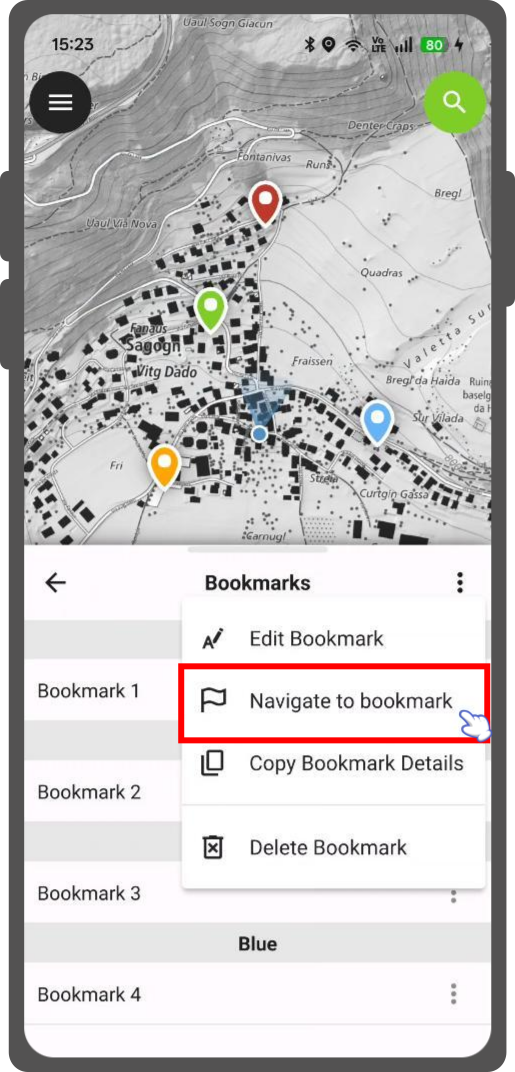
Open the Bookmark List panel and tap the three-dotted menu (⋮) next to a user bookmark to perform the following actions:
- Edit Bookmark": Modifies the bookmark name or color group.
- Copy Bookmark Details": Copies the bookmark name and geographic coordinates to the device clipboard.
- Navigate to bookmark": Sets the bookmark as the active navigation destination.
- Delete Bookmark": Deletes the bookmark.
Multi-Selection and Batch Deletion
Workflow
- Open the Bookmarks list panel from the Side Dashboard.
- Long-press a user bookmark or tap the top three-dotted menu (⋮) and select Toggle Bookmark Selection.
- Check the selection boxes next to target bookmarks.
- Tap the three-dotted menu (⋮) and select Delete Selected Bookmark(s).
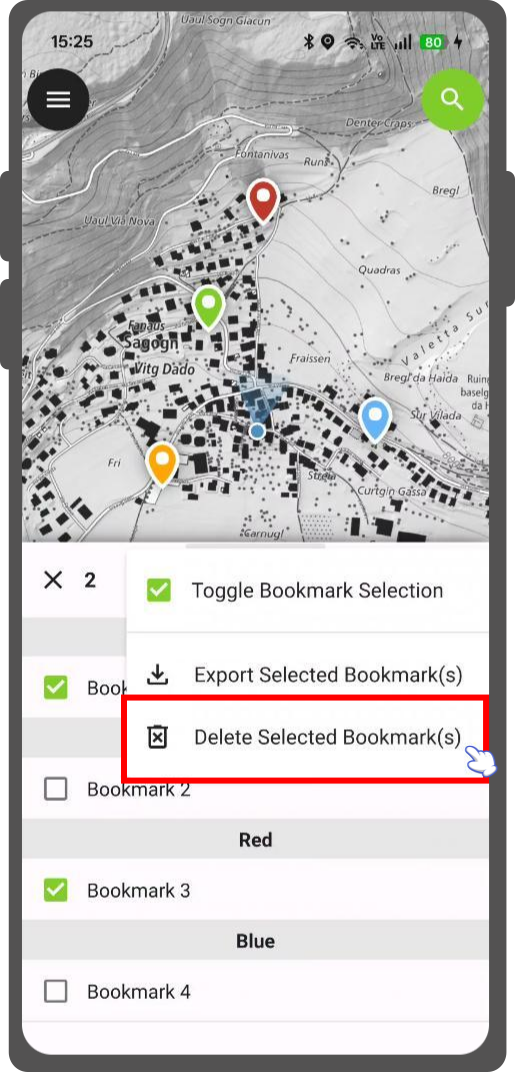
Exporting Bookmarks to GeoPackage
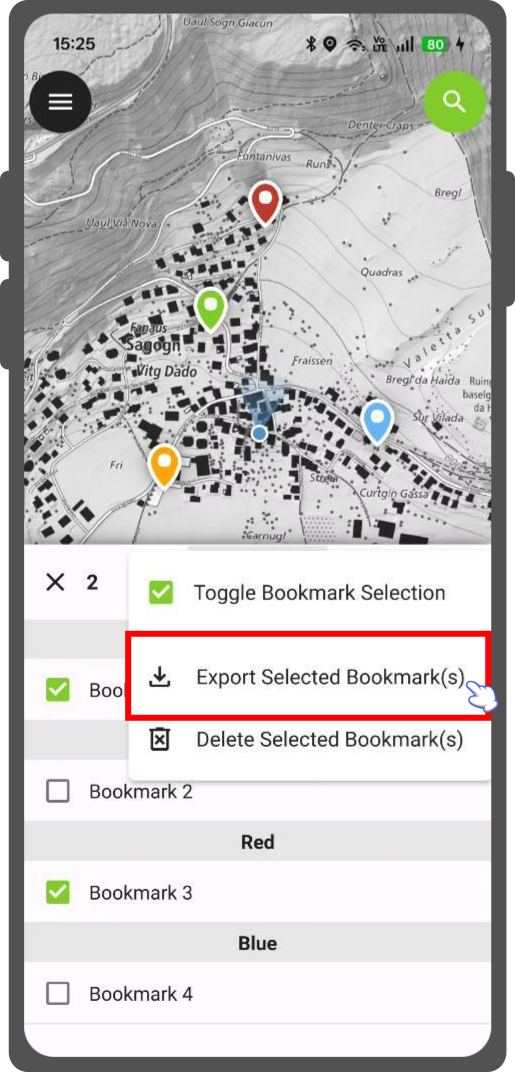
Export user bookmarks to a standalone GeoPackage (.gpkg) file to archive or share with colleagues.
Workflow
- Open the Bookmarks list panel from the Side Dashboard.
-
Select target bookmarks or export all bookmarks:
- Export all user bookmarks: Tap the top three-dotted menu (⋮) and select Export All User Bookmarks.
- Export selected user bookmarks: Select target bookmarks, tap the top three-dotted menu (⋮), and select Export Selected Bookmark(s).
-
QField compiles bookmark geometries, names, and color attributes into a
.gpkgfile and opens the native device sharing dialog (Send to...) to transfer the file via email or cloud storage.
Navigating to a Bookmark
Fieldwork
Set any spatial bookmark as an active navigation destination.
Option 1: Via the Bookmark List Panel
Workflow
- Open the Bookmarks list panel from the Side Dashboard.
- Tap the three-dotted menu (⋮) next to the target bookmark.
- Select Navigate to bookmark (navigation flag icon).
- QField sets the bookmark coordinates as the active navigation target.
Option 2: Via Search Bar
Workflow
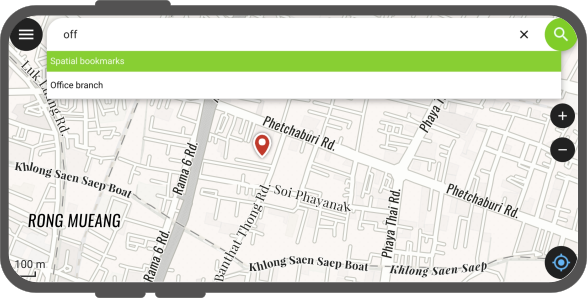
- Tap the search bar on the map canvas.
- Enter the bookmark name or type
bto filter for bookmarks. - Tap the purple navigation flag icon next to the bookmark in the search list to start navigation, or tap the text label to pan to the location.
Enabling or Disabling Bookmarks
Fieldwork
Hide spatial bookmark overlay pins on the map canvas:
Workflow
- Open the Side Dashboard.
- Tap the gear icon to open Settings.
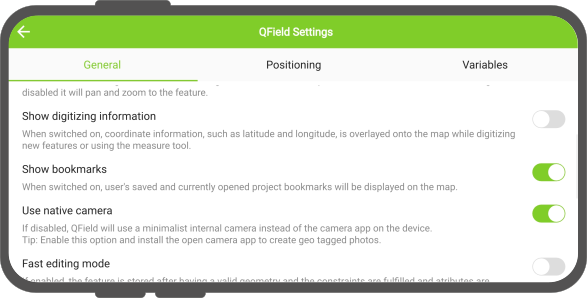
- Under General, toggle Show bookmarks.