Tracking
General Settings
Fieldwork
QField allows you to track your position through the creation of points, lines or polygons while browsing the map, working on other features and layers, or in the background while having the device in your pocket.
See Here how it looks in QField.
Automatic Tracking Session
You can configure the QGIS project in such a way that one or more position tracking sessions automatically start when opening a project in QField. The feature form of the layer will immediately open asking for the attributes. You can also hide the attribute form so that the tracking session automatically starts.
Workflow
- In QGIS, navigate to Vector Layer Properties... > QField.
- Enable Tracking Session and define time or distance requirements.
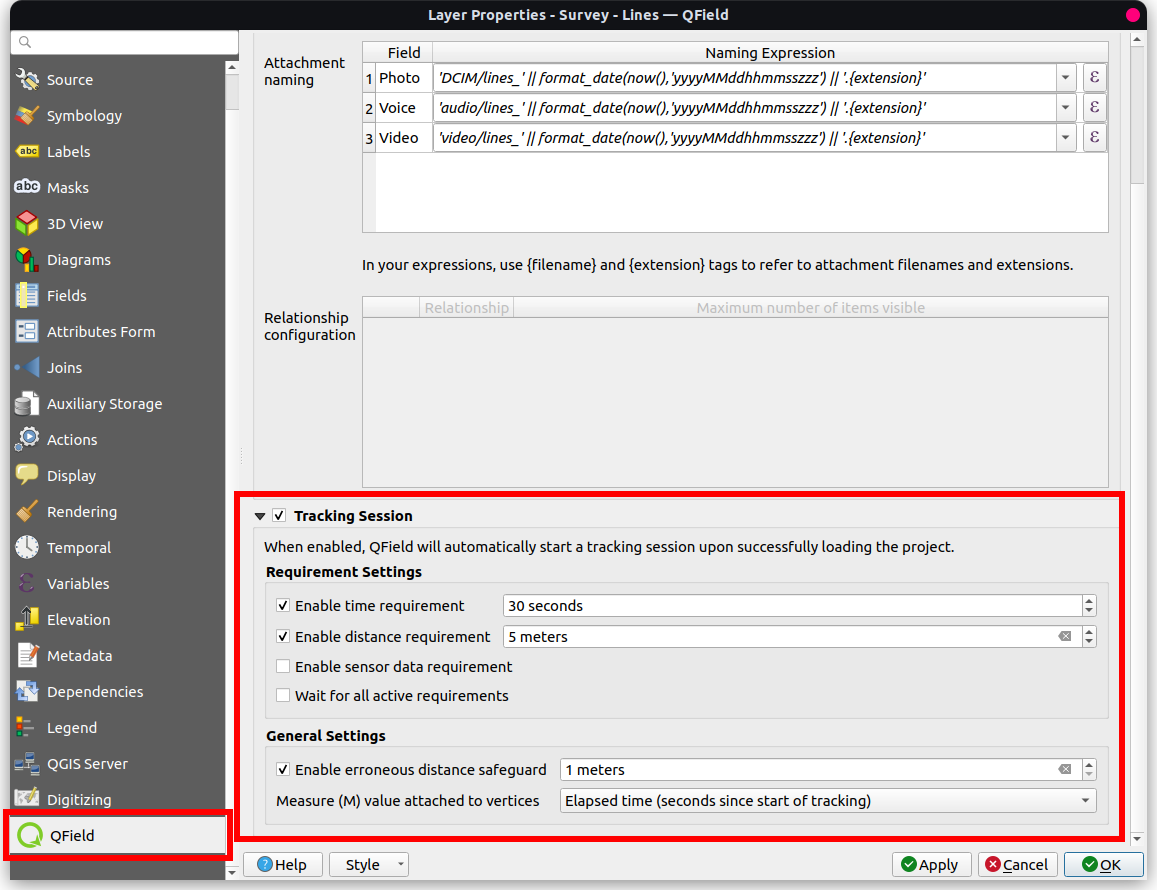
Activating automatic "Tracking Sessions" in QFieldSync 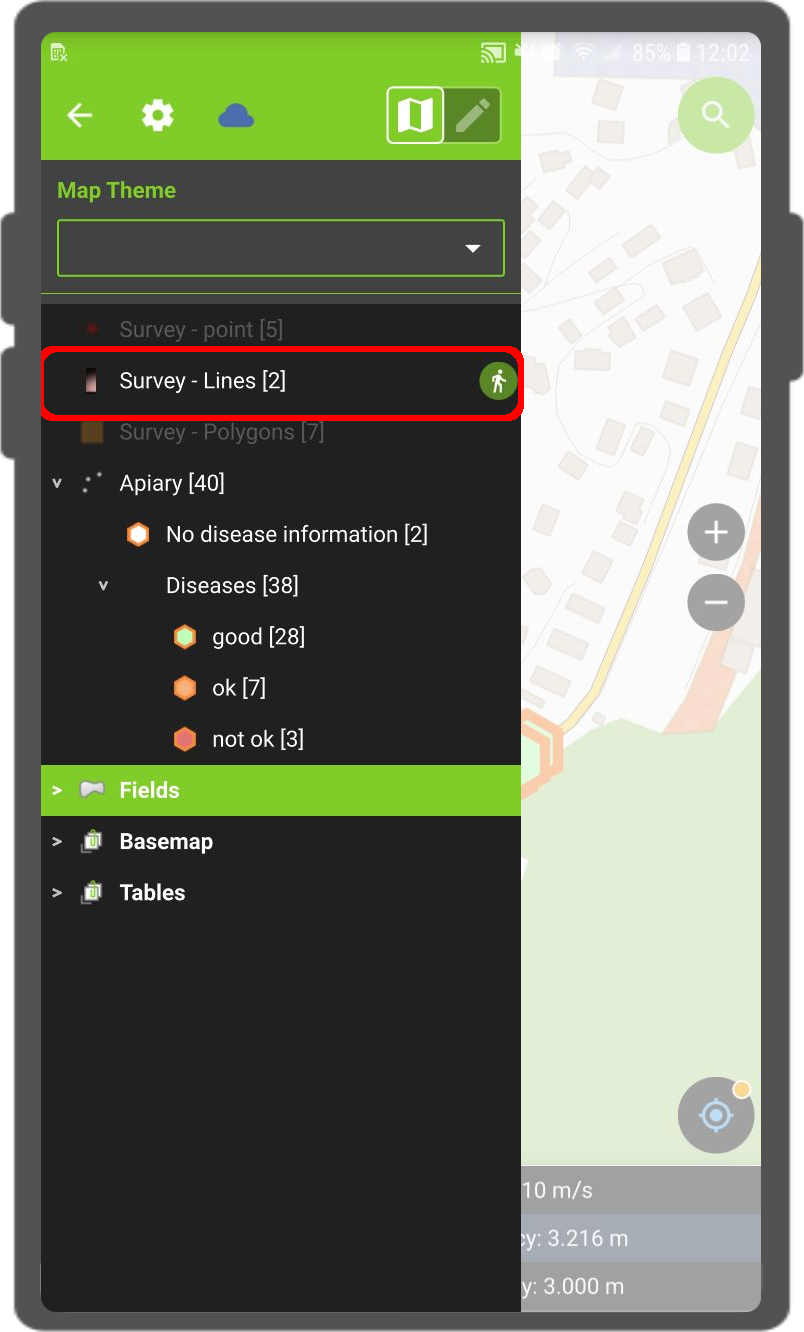
Tracking activated automatically in QField - (Optional) To bypass feature form prompts when auto-tracking begins, navigate to Vector Layer Properties... > Attribute Form and select Suppress attribute form.
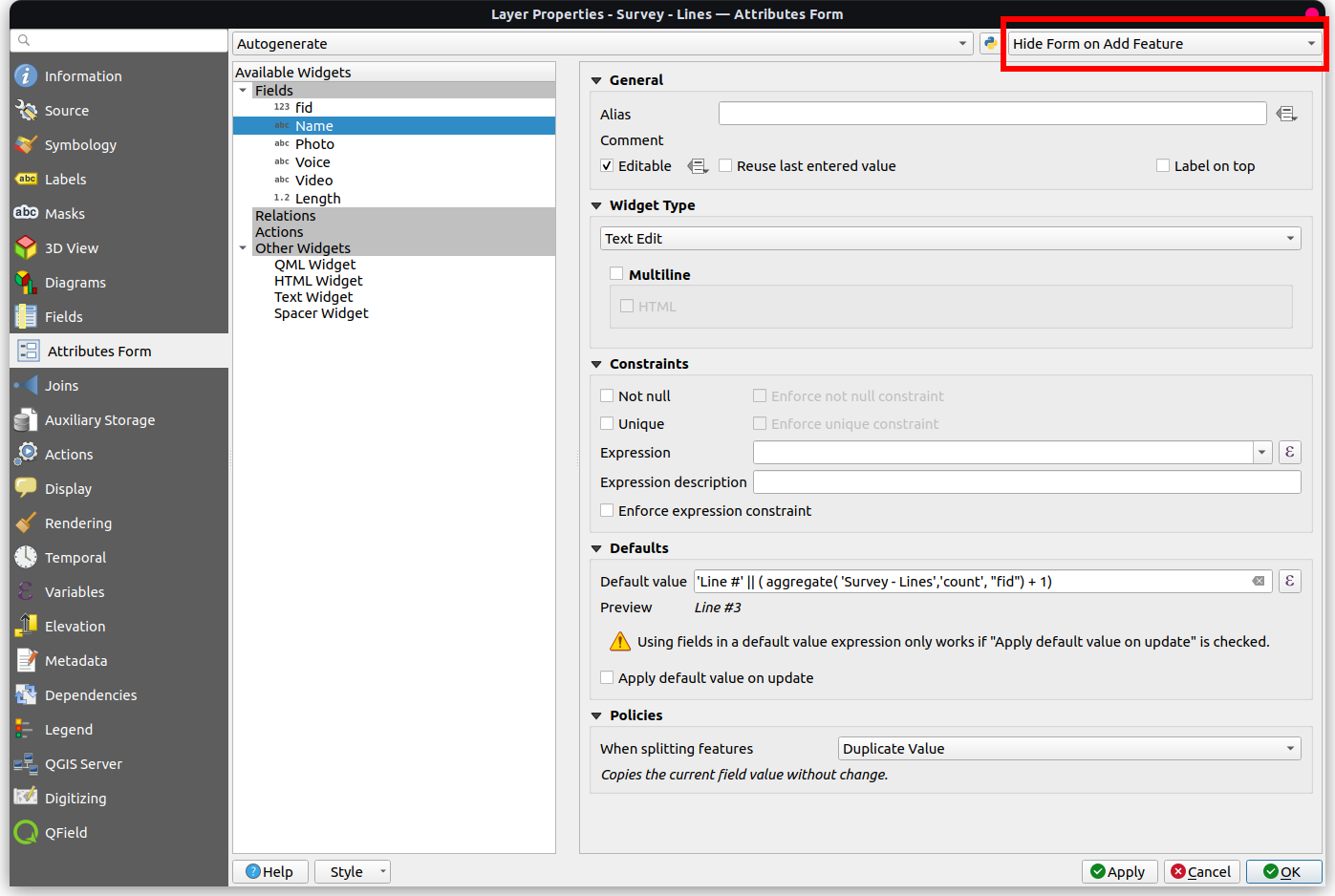
Hide Form on Added Feature
- Efficiency: Automation saves time and effort in the field.
- Flexibility: Users can customize sessions and start sessions without entering any attribute information by customising the feature with default values.