Permissions and Roles
QFieldCloud provides fine-grained access control over projects and organizations using Project Collaborator roles and Organization Member roles.
Access permissions follow a strict hierarchy: a higher role automatically inherits all capabilities of lower roles.
Tip
"Core Concepts Overview"
If you are new to QFieldCloud management, ensure you are familiar with these core concepts:
- Projects: The central repositories storing QGIS project files, layer datasets, styles, and field edits.
- Organizations: Shared accounts that own storage quotas, manage member subscriptions, and centralize project managements.
- Members: User accounts added to an organization with defined organization-level administrative roles.
- Collaborators: Individual user accounts granted specific access permissions to a single project.
Project Collaborator Roles
Project roles determine what an individual user can do within a specific project.
| Role | Summary |
|---|---|
| Owner / Admin | Full control over the project, including renaming, deleting, managing secrets, and modifying restricted project files (.qgz/.qgs). |
| Manager | Can manage project collaborators and dataset files. (Organization projects only) |
| Editor | Can create, update, and delete features and their attributes in the field. (Organization projects only) |
| Reporter | Can download the project and collect new features in the field, but cannot edit or delete existing features. |
| Reader | Read-only access to view and download the project. Cannot upload edits or changes. |
Nota
To assign more than one collaborator on private projects, the project must belong to an organization plan and collaborators must all be members of that organization. Alternatively, you can make a project "public" allowing all QFieldCloud users to access your project.
Project Capabilities
The following table details what each project role can do:
| Capability \ Role | Reader | Reporter | Editor | Manager | Admin / Owner |
|---|---|---|---|---|---|
| View and download project files | ✅ | ✅ | ✅ | ✅ | ✅ |
| Collect NEW features in the field | ❌ | ✅ | ✅ | ✅ | ✅ |
| UPDATE or DELETE existing features | ❌ | ❌ | ✅ | ✅ | ✅ |
| Upload datasets (e.g., GeoPackages) | ❌ | ❌ | ✅ | ✅ | ✅ |
| Manage project collaborators | ❌ | ❌ | ❌ | ✅ | ✅ |
| Manage project secrets & service credentials | ❌ | ❌ | ❌ | ❌ | ✅ |
Upload restricted project files (.qgz, styles) |
❌ | ❌ | ❌ | ❌ | ✅ |
| Rename or delete the project | ❌ | ❌ | ❌ | ❌ | ✅ |
Organization Member Roles
Organization member roles govern administrative access to the organization itself, its member directory, billing details, and all projects owned by that organization.
| Role | Summary |
|---|---|
| Owner | Primary administrative authority. Full access over organization billing, subscription plans, ownership transfers, member management, and all organization projects. |
| Admin | Administrative manager. Can manage organization members, structure teams, and manage all organization projects. |
| Creator | Project creation specialist. Can create new projects under the organization and manage projects they have created, without administrative access to organization billing or member lists. They are automatically set as administrators of the newly created projects. |
| Member | Standard organization user. Assigned to specific organization projects as a collaborator. Membership distinction primarily serves organizational visibility and billing seat allocations. |
Organization Capabilities Matrix
The following table details what each organization role can do:
| Capability \ Role | Member | Creator | Admin | Owner |
|---|---|---|---|---|
| View organization member directory & teams | ✅ | ✅ | ✅ | ✅ |
| Access assigned organization projects | ✅ | ✅ | ✅ | ✅ |
| Create new projects under the organization | ❌ | ✅ | ✅ | ✅ |
| Add, remove, or modify organization members | ❌ | ❌ | ✅ | ✅ |
| Manage organization teams & team roles | ❌ | ❌ | ✅ | ✅ |
| View billing, active users, and invoices | ❌ | ❌ | ❌ | ✅ |
| Modify plan subscriptions & payment details | ❌ | ❌ | ❌ | ✅ |
| Delete organization or transfer primary ownership | ❌ | ❌ | ❌ | ✅ |
Key Security Features
Restricted Project Files
When the "Restrict project files" setting is enabled on a project, standard Editors and Managers can continue updating datasets (such as GeoPackages), but they are blocked from modifying or replacing core project files (such as .qgz or .qgs project files and style templates).
Only Admins and Owners can modify restricted files.
Private vs. Public Projects
Each project can be configured as Private or Public:
- Log into QFieldCloud and select your project.
- Navigate to Settings in the project.
- Toggle the Public project option.
In the QFieldCloud web interface, project visibility is indicated by the status icon next to the project name: a lock icon (🔒) represents a Private project, while if the project doesn't have any icon it represents a Public project.
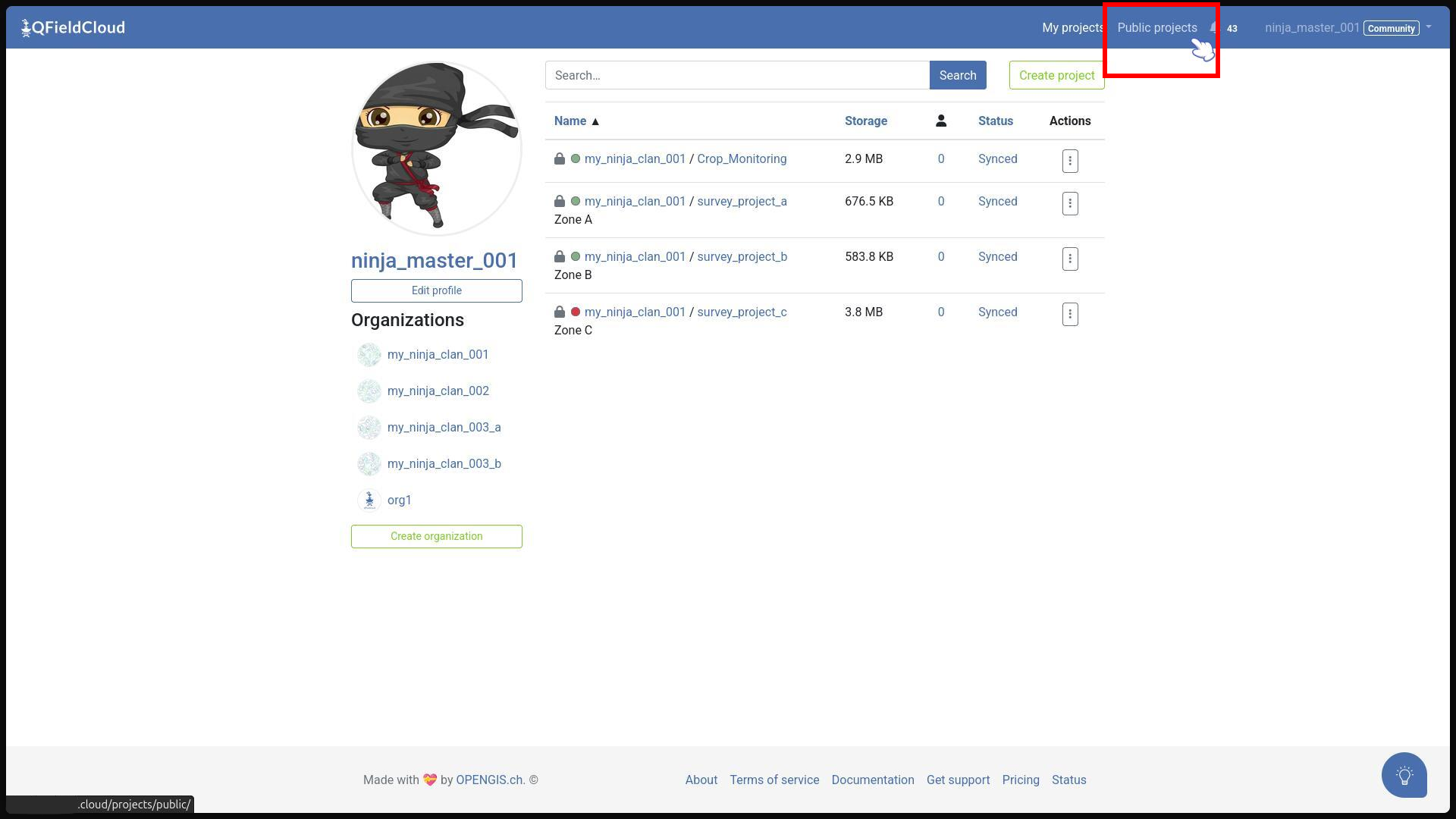
- Private Projects: The project owner, organization owner, and organization admins automatically receive the Admin project role. All other users attempting to access the project will receive a
404 Not Founderror unless they have been explicitly added as project collaborators. - Public Projects: The project owner, organization owner, and organization admins automatically receive the Admin project role. All other registered QFieldCloud users implicitly receive the Reader project role (allowing them to view and download the project contents), unless they have been explicitly added as project collaborators with a higher role.