Working with PostgreSQL
PostgreSQL in QField
Project Manager
Working with databases simplifies data management in multi-user environments and complex project structures. QField allows connecting directly to PostgreSQL databases after completing initial configuration steps. This page provides step-by-step instructions to configure PostgreSQL database connections for QField and QFieldCloud.
Connection to PostgreSQL in QGIS
Project Manager
QGIS supports two methods to connect to a PostgreSQL database:
- Direct Connection: Stores connection parameters and credentials directly inside the QGIS project file.
- Using a PG Service File: Stores database connection parameters separately in a central service configuration file.
We recommend using PG service files for security rather than storing unencrypted database credentials inside project files.
Direct Connection Using Simple Authentication
You can create a PostgreSQL connection directly inside QGIS.
Warning
We do not recommend storing database credentials directly in QGIS project files due to data security risks.
Flujo
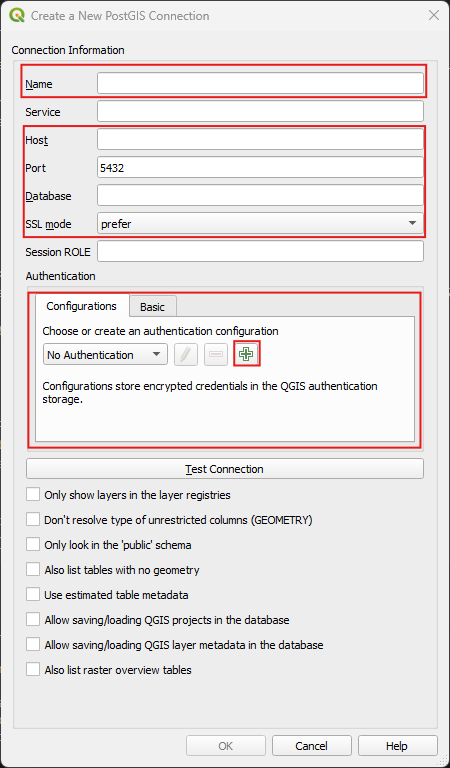
- In the QGIS Browser panel, right-click PostgreSQL and select New Connection....
- Enter a connection name and specify connection parameters (such as host, database name, port, and SSL mode).
- Under the Authentication section, click Add to store user credentials if not previously saved.
- Click Test Connection and click OK when the connection succeeds.
- Create a new project on QFieldCloud, selecting the direct connection option to maintain database access.
- Configure project layers and synchronize the project to QFieldCloud.
If you stored access credentials in the Authentication section, QField can edit and digitize features directly.
Connection via PG Service
Project Manager
Connect to PostgreSQL using a service configuration file.
A pg_service.conf file stores parameter definitions to access databases under named service entries.
Using service files avoids storing hostnames, ports, database names, and passwords directly inside QGIS project files.
Service files allow quickly switching between multiple database instances across different projects.
Read more about PostgreSQL service connection files in the QGIS Documentation.
The PG Service Parser Plugin simplifies creating and managing service configuration files in QGIS.
Workflow
Project Manager
- Navigate to Plugins > Manage and Install Plugins....
- Search for PG service parser and click Install Plugin.
- Click the PG service parser icon in the QGIS toolbar to open the plugin window.
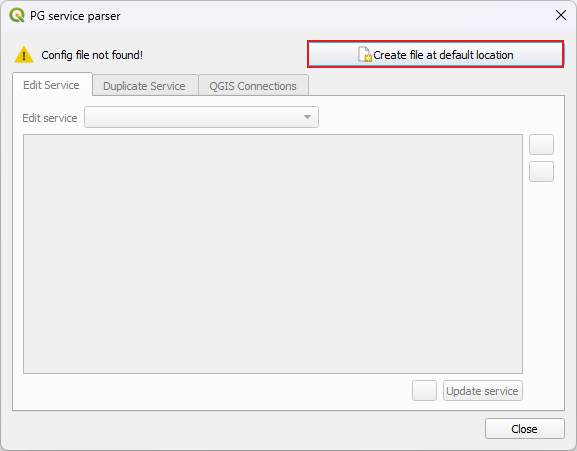
- Click Create file at default location to generate a new
pg_service.conffile in the default directory.
Workflow
Project Manager
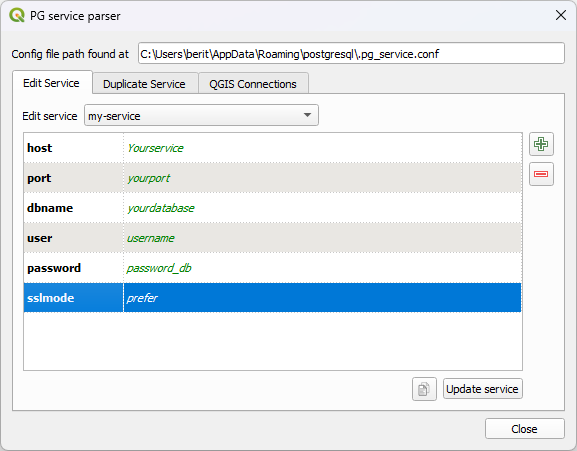
- Click the green plus (+) icon inside the PG Service Parser plugin dialog.
- Select required connection parameters and click OK.
- Double-click parameter sections to enter your database details (such as host, port, database name, user, and password).
- Click Update service to save your service configuration.
Workflow
Project Manager
- Open the QGIS Connections tab inside the PG Service Parser dialog.
- Select the target service entry.
- Click the green plus (+) icon to add a new connection.
- Accept the default connection name or enter a custom name.
- Double-click the new connection entry and click Test Connection.
- Click OK when the connection succeeds, then close the plugin dialog.
The new connection appears under the PostgreSQL entry in the QGIS Browser panel.
Conexión con PostGIS en QField
When using a PG service file to connect to PostGIS, you must provide the service configuration file on your mobile device or save it in QFieldCloud as a project secret.
Configuration on Mobile Devices
Trabajo de campo
When transferring projects via USB cable, copy your service configuration file directly to the QField application directory on your mobile device.
The QField application directory on Android is located at Android/data/ch.opengis.qfield/files/QField.
Nota
- Android restrictions require connecting your device to a computer via USB cable to access app directories.
- Unlike Unix systems where the file is named
.pg_service.conf, Android usespg_service.confwithout a leading dot.
Configuración en QFieldCloud
QFieldCloud supports pg_service.conf configurations using project secrets.
Set PostgreSQL layers to the Offline editing cloud packaging action and save your service settings on the QFieldCloud project secrets page.
Read more about configuring PostgreSQL service secrets in the QFieldCloud documentation.
Creating a pg_service.conf File for PostgreSQL Connections
Ensure your PostgreSQL database allows connections from QFieldCloud servers before setting up database access. Refer to Technical Specifications for server IP requirements.
Setting up the pg_service.conf File
Create and populate a service configuration file on your operating system. Read more in the PostgreSQL Documentation.
- Create the Configuration File:
- Windows: Create a file named
pg_service.confin your user profile or application folder. - Linux / macOS / Unix: Create a file named
.pg_service.confin your home directory (~).
- Windows: Create a file named
-
Define Connection Parameters: Add your database parameters using the following format:
[SERVICE_NAME]
host=your_host_or_ip
port=your_port
dbname=your_database_name
user=your_username
password=your_password
Replace placeholder values with your actual database parameters and save the file.
Pasos adicionales de configuración para Windows
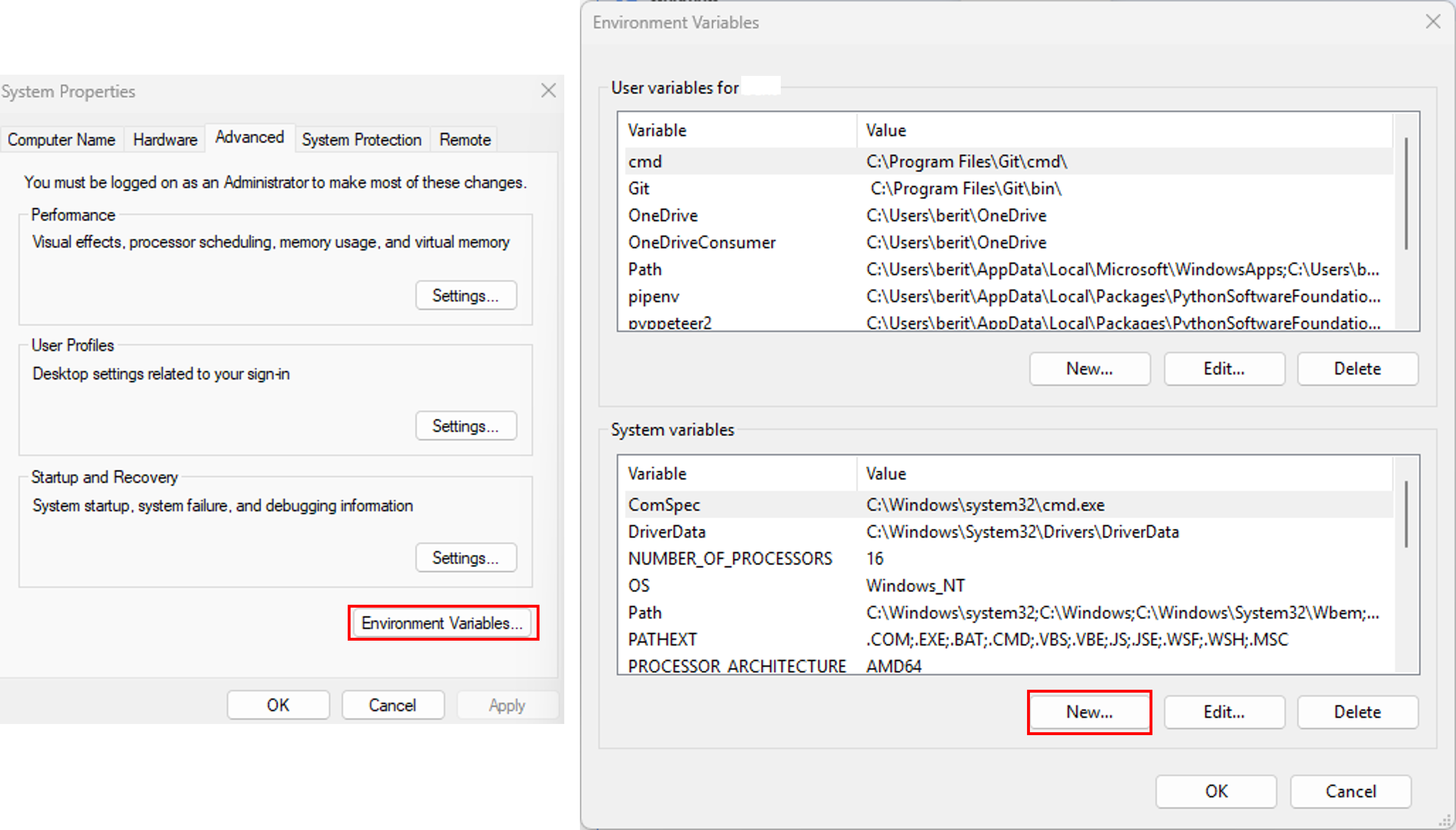
Create an environment variable on Windows to ensure QGIS and system tools locate pg_service.conf.
Flujo
- Open This PC > Properties > Advanced system settings > Environment Variables.
- Add a new system or user variable:
- Variable name:
PGSERVICEFILE - Variable value:
C:\Users\<YourUsername>\AppData\Roaming\postgresql\pg_service.conf(or your custompg_service.conffile path).
- Variable name:
Setting Environment Variables in QGIS:
Flujo
- Navigate to Settings > Options... > System.
- Under the Environment section, enable Use custom variables.
- Add the
PGSERVICEFILEvariable name and file path.
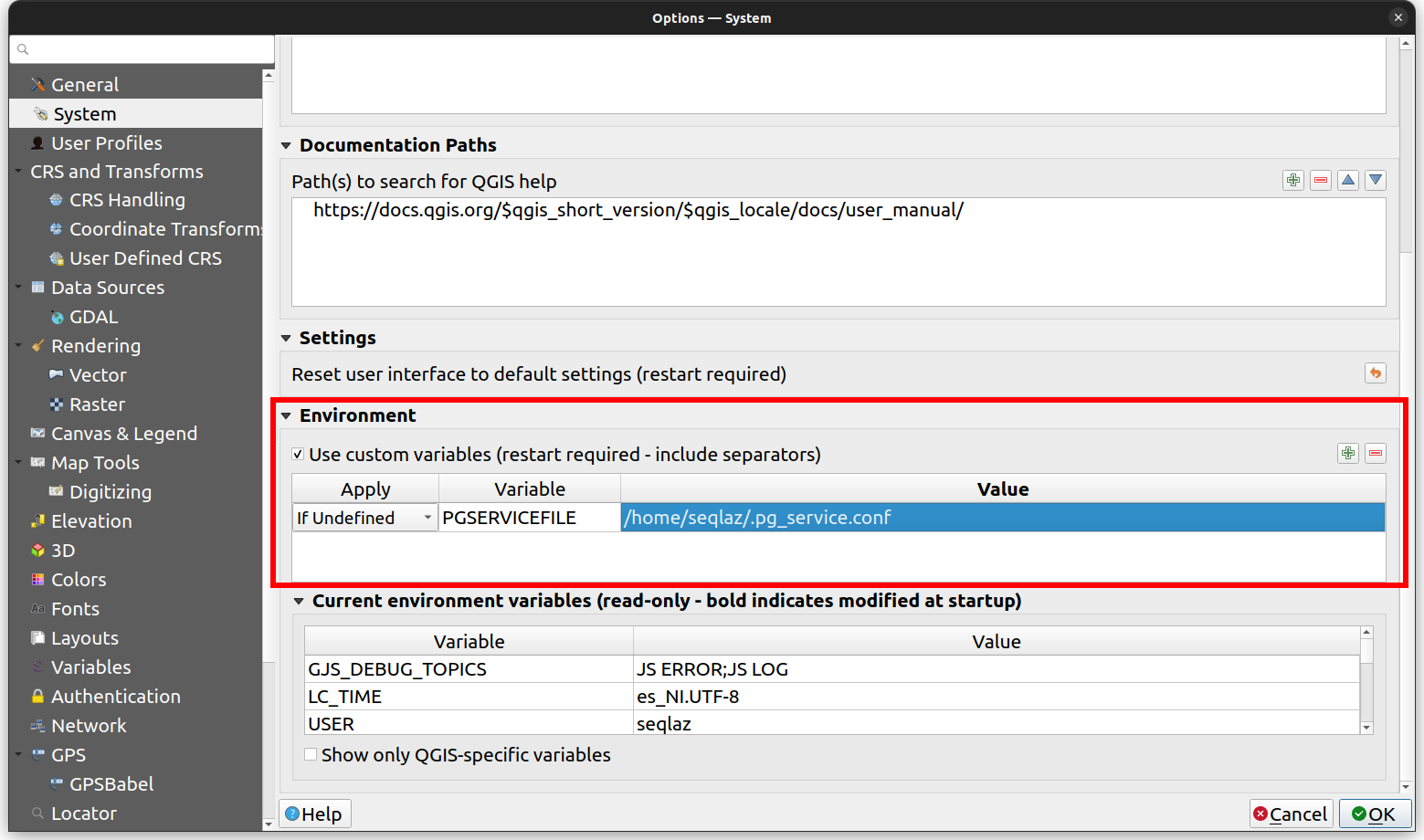
Refer to the QGIS System Settings Documentation for additional details.
Using Client Certificates
Use client certificates to verify user identities when connecting to PostgreSQL servers by defining SSL parameters in pg_service.conf.
[SERVICE_NAME]
host=your_host_or_ip
port=your_port
dbname=your_database_name
user=your_username
password=your_password
sslcert=client.crt
sslkey=client.key
sslrootcert=server.crt
pg_service.conf file within the QField data folder. For more information on this identification method, refer to the PostgreSQL documentation.