Shared Datasets
QField allows you to store datasets in a central folder — referred to as a "shared datasets folder" — and access them across multiple projects.
Sharing layers across projects reduces storage usage for large datasets (such as background raster orthophotos or regional vector datasets) and simplifies dataset updates across devices.
You can share data across projects using two methods:
- Manual Transfer: Copy datasets directly onto device storage.
- QFieldCloud Synchronization: Upload datasets to a dedicated project on QFieldCloud accessible to dependent projects.
Gestión de rutas de datos localizadas en QGIS
Project Manager
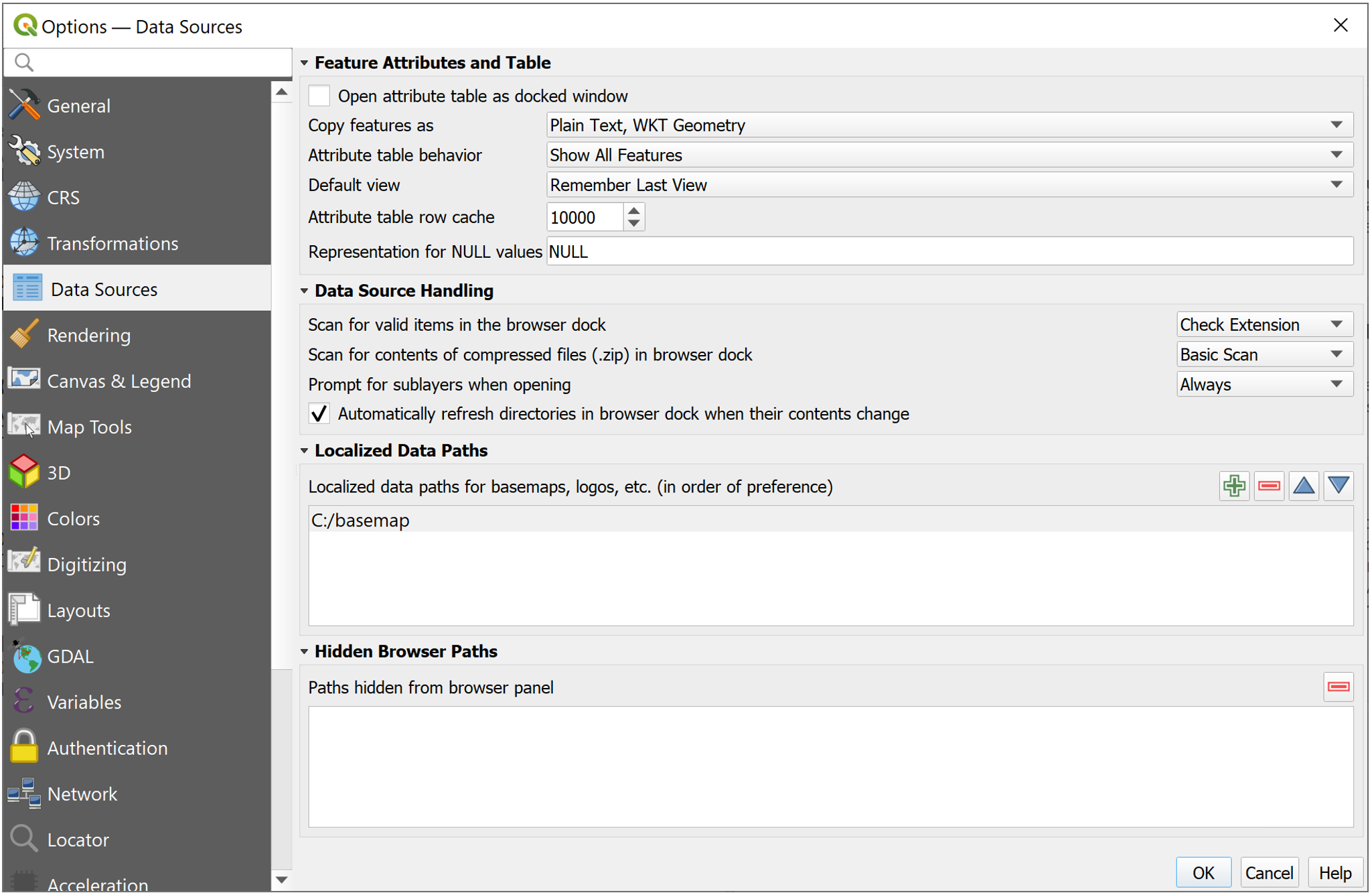
When preparing projects in QGIS, you have to store your shared layers inside directory paths that are configured as "Localized Data Paths".
Flujo
- In QGIS, navigate to Settings > Options... > Data Sources.
- Under the Localized Data Paths section, click the plus (+) button and add the folder path where shared datasets are stored.
- Restart QGIS to apply localized path settings.
Manual Transfer to Mobile Devices
Trabajo de campo
Transfer shared datasets manually to mobile devices by copying files into the local QField application folder.
Flujo
- Locate to your device's App Directory. (To check the app path in QField, open the Side Dashboard > three-dotted menu (⋮) > About QField).
- Copy your shared dataset files into
[App Directory]/QField/basemaps. QField automatically scans this directory for shared datasets across all local projects.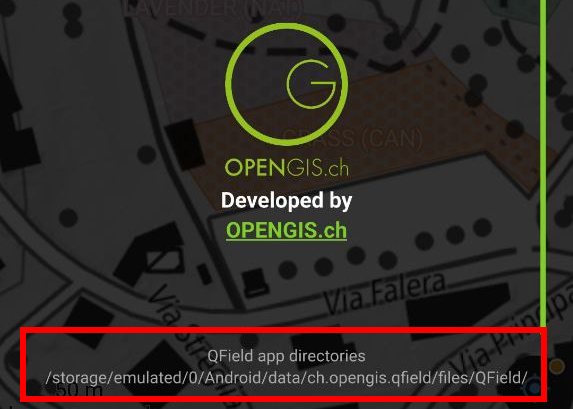
QField app directories
Configuring Shared Datasets with QFieldCloud
QFieldCloud streamlines shared dataset management across projects using QGIS localized data path settings.
Cloud projects reference shared datasets stored in a central QFieldCloud project named exactly shared_datasets.
The directory structure inside the shared_datasets cloud project mirrors the localized path structure on your desktop computer.
For example, if your QGIS Localized Data Path is ./GIS_Common/BaseData/ containing Administrative-boundaries.gpkg, the file appears as Administrative-boundaries.gpkg at the root of the shared_datasets cloud project.
Nota
- Only collaborators assigned Manager or Admin roles (or organization owners) can add or update files inside the
shared_datasetsproject. - Important for Organization Managers: If you are using
shared_datasetswithin an organization you have to create an empty cloud project named shared_datasets on QFieldCloud.
Preparation of QGIS Projects with Shared Datasets
Preparación en escritorio
Flujo
- Configure Localized Data Paths in QGIS as described in Managing Localized Data Paths in QGIS.
- Verify that shared layer file paths in your QGIS project are relative to one of the configured localized data paths.
Uploading Shared Datasets to QFieldCloud
Preparación en escritorio
Upload shared datasets to QFieldCloud using the QFieldSync plugin after verifying that the shared_datasets project exists in QFieldCloud.
Flujo
- Open your project in QGIS and open the QFieldSync plugin dialog.
- Initiate the synchronization process to open the QFieldSync action panel.
- Enable the Upload missing localized dataset(s) checkbox.
(Hovering over the checkbox displays a list of
shared datafiles selected for upload. This option is available only to users with upload permissions on theshared_datasetsproject). - Click Perform Actions to upload project files and shared datasets to QFieldCloud.
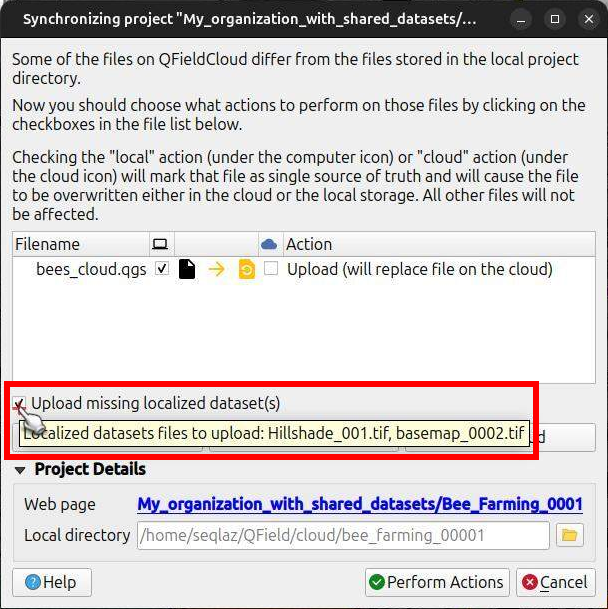
QFieldSync Synchronization Dialog with Localized Datasets upload option enabled
Reviewing the Upload Log
You can inspect the QFieldSync process log to confirm which shared dataset files were uploaded to QFieldCloud after the synchronization is completed.
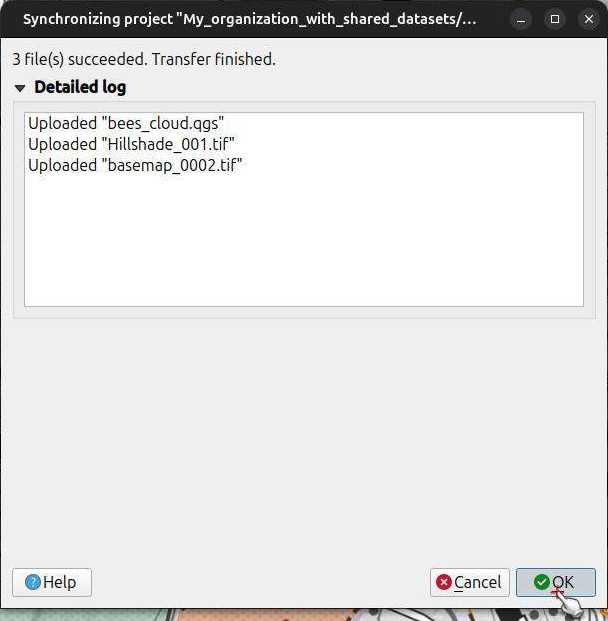
Managing Shared Datasets in QFieldCloud Web Interface
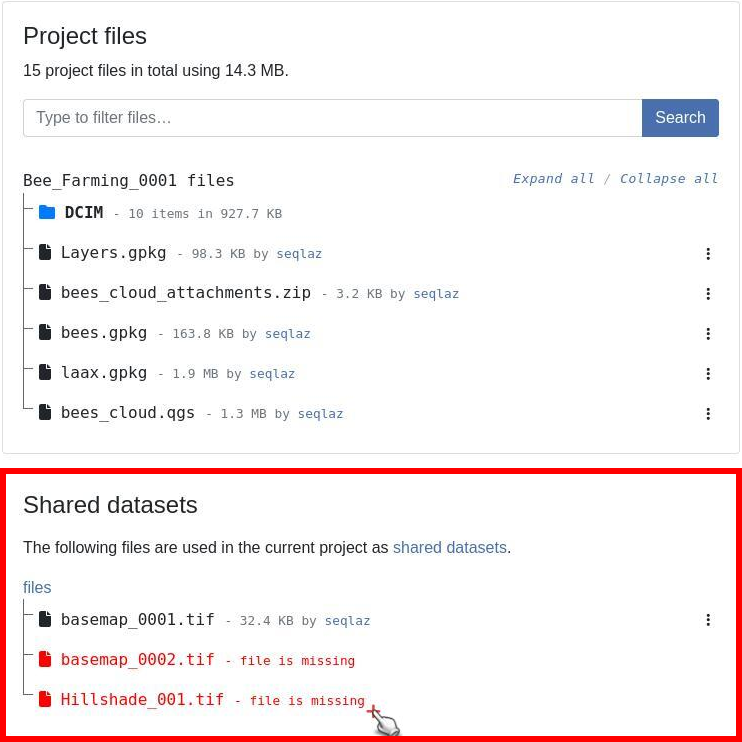
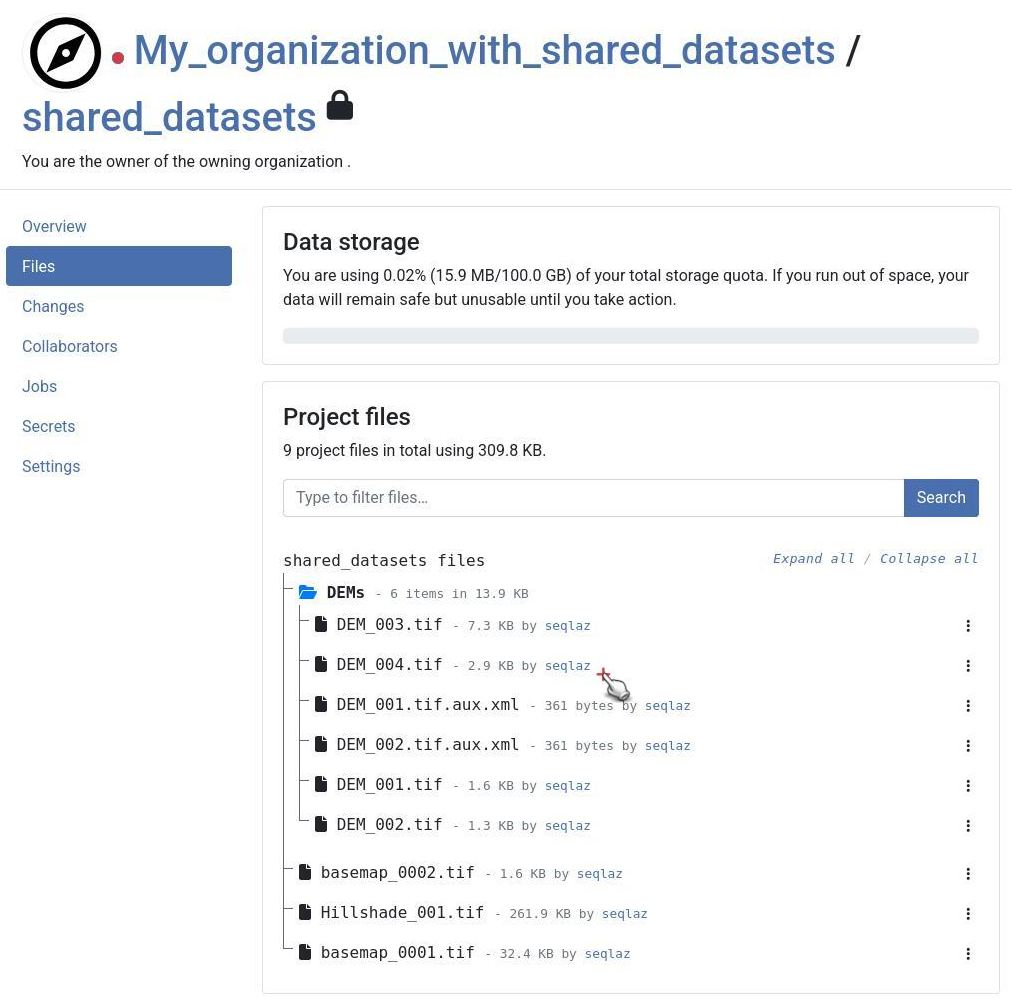
Uploaded shared datasets display in two locations within the QFieldCloud web interface:
- Inside the dedicated
shared_datasetsproject. - Referenced under the Files tab of any regular cloud project that uses them.
Flujo
- Open your project in the QFieldCloud web interface.
- Select the Files tab.
- Scroll down to the Shared datasets section to view the referenced shared files.
Managing Permissions for Shared Datasets
:material-desktop: Project Manager
By default, when you give access rights to collaborators to edit the regular project, it does not automatically grant access to the datasets that are located inside the shared_datasets project.
You must specifically grant users access to the shared_datasets project so they can download shared files.
Flujo
- Open the
shared_datasetsproject in the QFieldCloud web interface. - Select the Collaborators tab.
- Add project collaborators and assign them at least the Reader role. The Reader role allows users to view and download shared files in QField and QFieldSync without modifying central datasets.
Note
Collaborators who need to upload, update, or remove files in the shared_datasets project require the Manager or Admin role.
Troubleshooting Shared Datasets
When a project references shared files that have not yet been uploaded to the shared_datasets project, QFieldCloud displays missing file warnings in red text inside the web interface.
To resolve missing shared files, confirm that the shared_datasets project exists on QFieldCloud and re-synchronize the project from QGIS using QFieldSync if they are not, making sure that you enable Upload missing localized dataset(s).
When opening a QGIS project that references shared files already uploaded to shared_datasets, QFieldSync detects the existing cloud files and hides the Upload missing localized dataset(s) checkbox.
Downloading Shared Datasets in QField
Trabajo de campo
Flujo
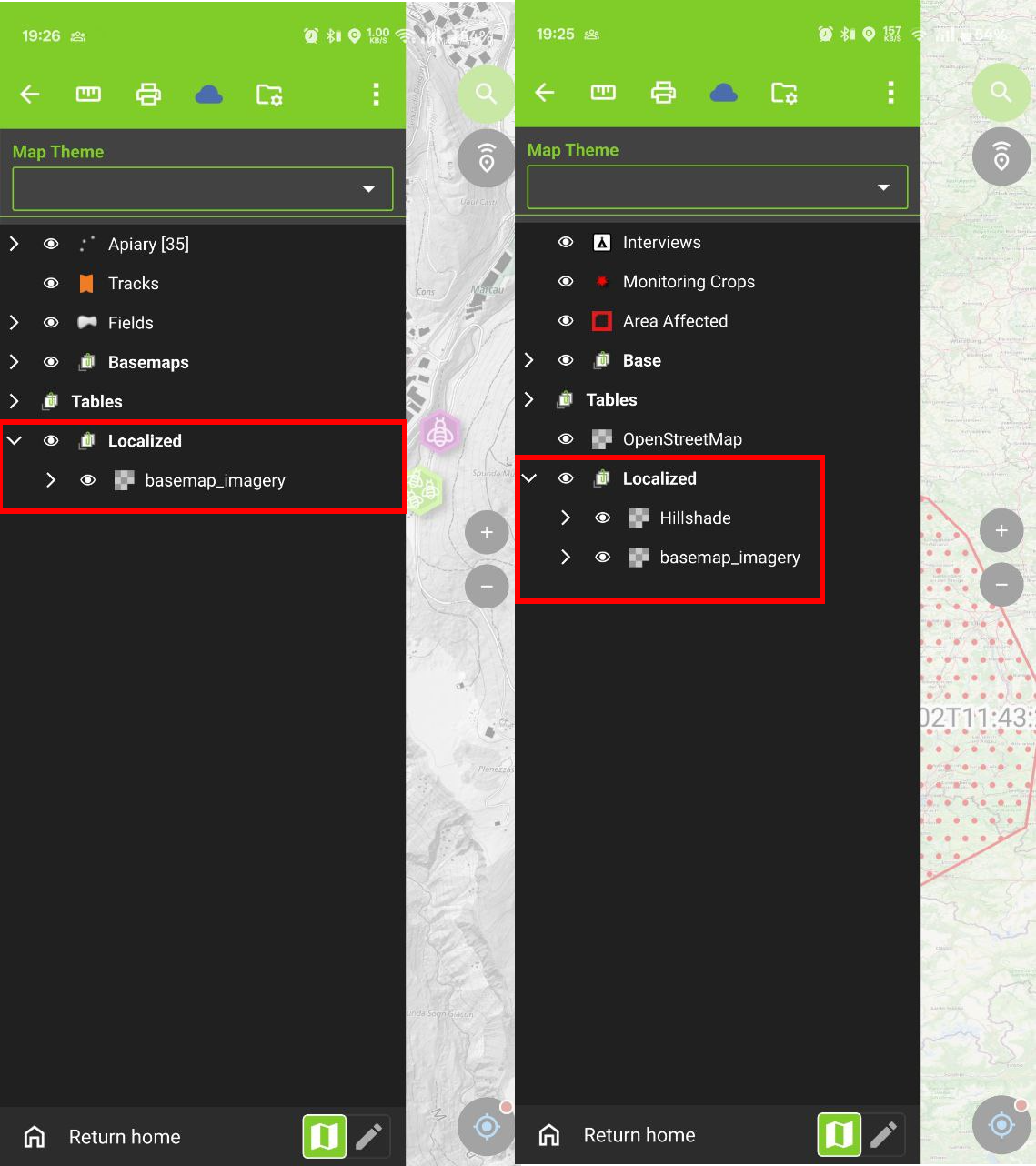
- Open a cloud project containing shared datasets in QField and tap synchronize.
- QField downloads each shared dataset once, storing files locally to serve all projects referencing those datasets.
Direct Synchronization of the shared_datasets Project
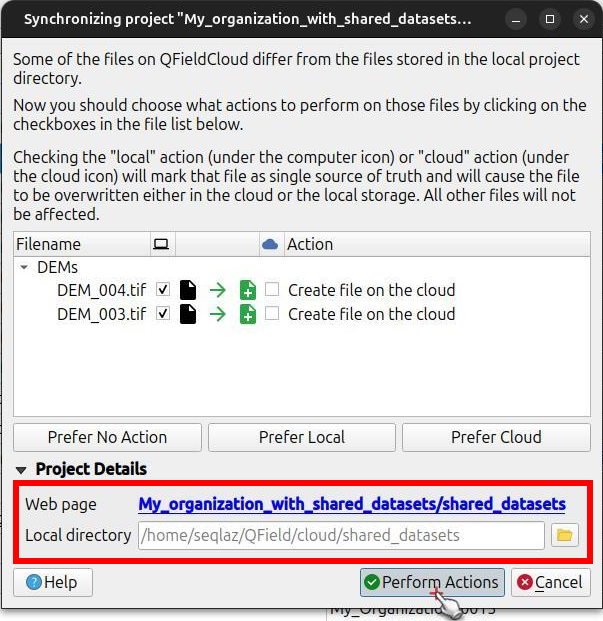
Users with Manager or Admin permissions can synchronize files directly into the shared_datasets project without synchronizing dependent projects.
Uso de QFieldSync
Project Manager
Flujo
- In QFieldSync, download the
shared_datasetsproject from QFieldCloud to a local directory on your computer. - Add, update, or remove shared dataset files inside the downloaded folder directory.
- Synchronize the
shared_datasetsproject in QFieldSync to push changes to QFieldCloud.
Note
Collaborator permissions must be assigned explicitly on the shared_datasets project.
Admin roles on dependent projects do not grant administrative access to the shared_datasets project.
Using the QFieldCloud CLI
Automate dataset synchronization to the shared_datasets project using the qfieldcloud-cli command-line tool (included in the qfieldcloud-sdk Python package).
Flujo
-
Authenticate with QFieldCloud:
qfieldcloud-cli login USER PASSWORD export QFIELDCLOUD_TOKEN="YOUR_SECRET_TOKEN" -
Retrieve the project ID for your
shared_datasetsproject:- List the QFieldCloud projects and get the project ID of the
shared_datasetsproject:
$ qfieldcloud-cli list-projects
Listing projects...
Projects the current user has access to:
| ID                                   | OWNER/NAME           | IS PUBLIC |
---------------------------------------------------------------------------
| 90e83606-dce8-4b0d-854a-388904d8a739 | USER/shared_datasets | 0         |
Note
Your project ID will be different
- List the QFieldCloud projects and get the project ID of the
-
Upload local shared dataset directories to the shared_datasets project:
Upload the shared datasets from your local source directory to the
shared_datasetsproject:qfieldcloud-cli upload-files 'YOUR_PROJECT_ID' "./path/to/your/local/shared/data/"
Puede configurar este comando como una tarea cron periódica que se ejecuta periódicamente (por ejemplo, diariamente) o activarlo manualmente en función de otras condiciones, para mantener actualizados sus conjuntos de datos compartidos en QFieldCloud.