Als PDF-Datei drucken
Export configured QGIS map print layouts as PDF documents directly within QField.
Verwendung
Feldarbeit
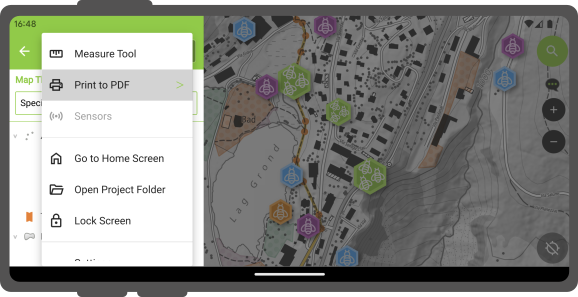
Access print layout exports from the main menu inside QField.
Workflow
- Open the Side Dashboard.
- Tap Print to PDF.
- Select a print layout from the submenu if your project contains multiple layouts. (If your project contains a single print layout, QField immediately initiates the export).
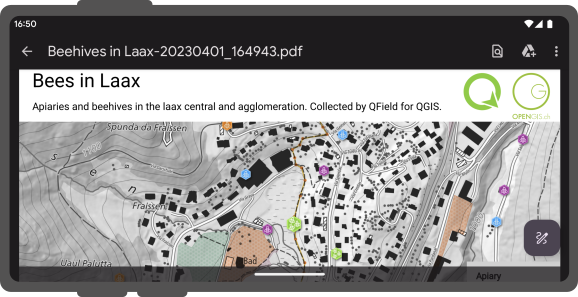
- Open and view the generated PDF document when prompted upon completion.
Funktionsgesteuerter Atlas-Druck
Export atlas-driven print layouts by selecting coverage layer vector features on the map canvas or inside feature forms.
Workflow
Printing multiple atlas features:
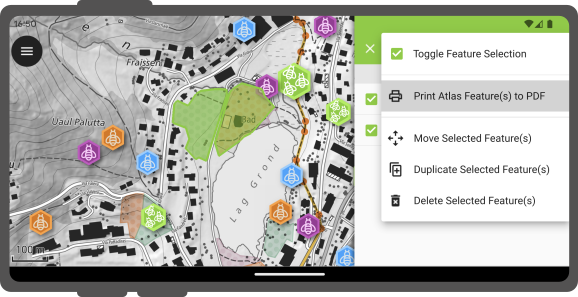
- Tap features on the map canvas to open the identification list.
- Long-press a feature in the identification list to enter multi-selection mode.
- Select additional coverage layer features to include in the export.
- Tap the three-dotted menu (⋮) and select Print Atlas Feature(s) to PDF.
Workflow
Printing a single atlas feature:
- Open the feature attribute form for a coverage layer feature.
- Tap the three-dotted menu (⋮) inside the form title bar and select Print Atlas Feature to PDF.