Tips and Tricks for Your QGIS Project
This page provides an overview of tips and tricks for your project and workflow to minimize synchronization errors, work efficiently, and save storage.
Project Configuration Best Practices
Follow these recommendations to ensure a smooth synchronization process between QGIS, QField, and QFieldCloud.
1. Centralized Data Storage
Before uploading your project, ensure all relevant data sources (GeoPackages, rasters, etc.) are located in the same directory as your project file (.qgs/.qgz) or in a subdirectory (e.g., ./data, ./assets).
If files are spread across different drives or folders on your computer, QFieldSync and QFieldCloud may fail to package them correctly for the mobile device.
2. Managing Unique IDs
When multiple users collect data offline simultaneously, standard auto-incrementing IDs (1, 2, 3...) result in conflict errors when applying delta changes on QFieldCloud.
- For Relations: Create a specific text field (e.g.,
survey_uuid) and useuuid()oruuid('WithoutBraces')as the default value. Use this field for all foreign keys and for the primary key if the layer originates from PostgreSQL/PostGIS. - For the
fid(Feature ID): When working with GeoPackages, reduce conflicts on the internalfidinteger column by setting the Default Value to the expressionepoch(now()). This generates a unique integer based on the current timestamp.
Tip
To set this up, navigate to Layer Properties > Attributes Form, select the fid field, and set Default Value to epoch(now()).
Ensure Apply default value on update is unchecked so the ID remains constant after creation.
3. Relative Paths
Absolute paths (e.g., C:\Users\{username}\Downloads\photo_001.jpg) break when transferring the project to a mobile device (Android/iOS) because the file system structure differs.
Workflow
- Navigate to Project > Properties... > General.
- Set Save paths to Relative.
4. Stable Layer References in Expressions
When writing expressions (such as inside aggregate() or relation_aggregate() functions), QGIS allows you to reference layers by internal ID (e.g., places_2348274...) or Layer Name (e.g., Places).
Always use the Layer Name (e.g., 'Places').
The internal Layer ID changes if you remove and re-add a layer, or when QFieldCloud triggers a packaging job. The Layer Name remains stable as long as you do not rename it in the layer tree.
5. Preferred File Formats
QField and QFieldCloud are optimized for the GeoPackage (.gpkg) format.
While QField and QFieldCloud support other formats like Shapefiles (.shp), GeoJSON, and KML, we strongly recommend converting these layers to GeoPackage before starting your project.
Workflow
- In QGIS, right-click your layer in the layer tree.
- Select Export > Save Features As....
- Set Format to GeoPackage.
- Click ... next to File name and navigate to your project folder.
- Enter a database name (e.g.,
notes_points.gpkg). - In Layer name, enter a simple layer name (e.g.,
notes_points). - Click OK.
- Remove the old layer from your project once the new layer loads.
6. Modular File Structure
QFieldCloud manages versions and backups at the file level. Every time changes synchronize, QFieldCloud creates a backup of the modified file.
- The Risk: Storing multiple layers in a single GeoPackage (e.g.,
survey_data.gpkgcontaining Trees, Roads, and Buildings) means restoring a backup to fix an error in one layer rolls back valid work done in other layers. - The Solution: Save each layer in its own separate GeoPackage file (e.g.,
trees.gpkg,roads.gpkg). This allows you to restore a previous version of a specific layer without losing data in other layers.
Common Configuration Errors
If you experience synchronization issues, check for these common configuration errors:
| Issue | Cause | Solution |
|---|---|---|
| Missing Images | Paths are set to "Absolute" | Navigate to Project > Properties... > General and set paths to Relative. |
| Sync Failures | Data is outside the project folder | Move all .gpkg and raster files into the same folder as the project file (.qgz/.qgs). |
| Expression Errors | Layer ID used in expression | Update expressions to use 'Layer Name' instead of 'Layer_ID_123'. |
| Duplicate Keys | Using default 1, 2, 3 IDs | Implement uuid() or epoch(now()) for unique identification. |
Download Attachments Only on Demand
In QFieldCloud settings, configure attachments to download on demand. This feature is useful when working with many photos without needing all attachments locally.
Workflow
- Select your project on the QFieldCloud landing page.
- Navigate to Settings.
- Enable the On demand attachment files download option.

Note
You can activate this feature during project creation or enable it for existing projects. You must be online to download attachments on demand. Offline viewing displays a blank screen for un-downloaded attachments.
Automatic Push to QFieldCloud
When making frequent field changes with attachments, synchronize to the cloud as often as possible to prevent data loss. Enforce automatic pushing of pending changes from QField devices in the field and specify the automated push interval. Configure this remote functionality in the project settings.
Project Manager
Workflow
- Navigate to Project > Properties... > QField > QFieldCloud Packaging.
- Enable the Automatically push pending changes on the following interval option and establish your preferred interval.
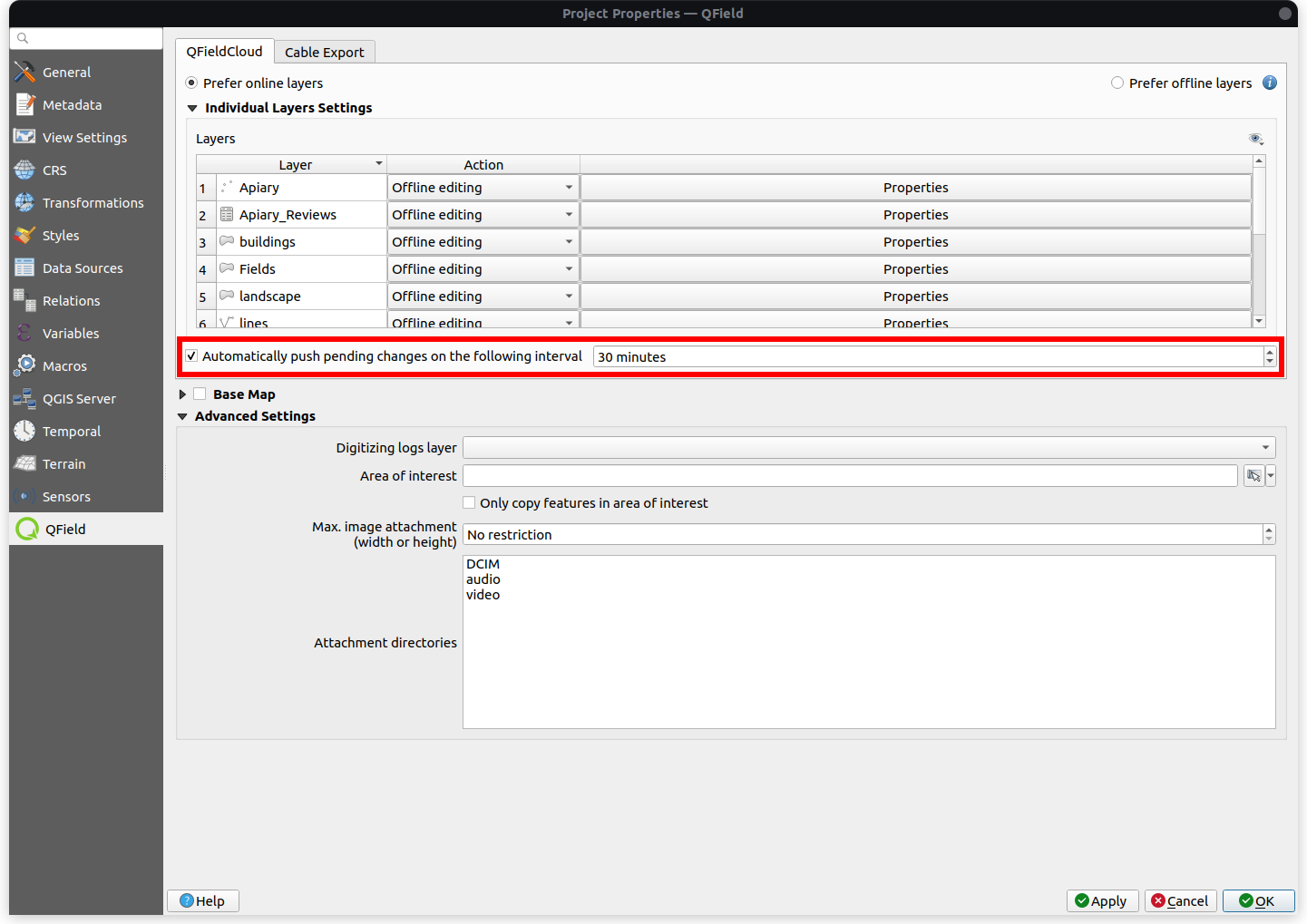
QField界面
Workflow
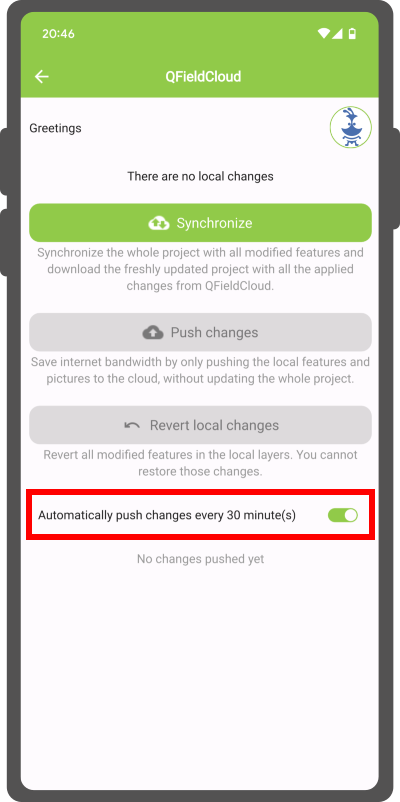
- Open the Side Dashboard and tap the cloud icon.
- Enable the automatic push setting (defaults to 30 minutes if unconfigured in the project).
Note
- Benefits:
- Real-Time Updates: Ensures prompt synchronization of field data with the QFieldCloud project.
- Streamlined Workflow: Minimizes manual intervention so surveyors can focus on data quality.
- Considerations:
- Network Stability: Requires stable internet connectivity for auto-push functionality.
- Battery Optimization: Plan strategies to manage battery consumption on mobile devices during prolonged fieldwork.
Restriction of Project Files
Restrict QGIS project files in field operations to prevent users with editor rights from modifying project configurations. Project administrators can restrict access to these files in QFieldCloud.
Workflow
Desktop preparation
- Navigate to Settings on the QFieldCloud homepage.
- Enable the Restrict project files option.

Restricted Files
When enabled, only users with Admin or Manager roles can modify or upload the following files:
- The primary QGIS project file (e.g.,
my_project.qgz) - The attachments zip archive associated with the project (e.g.,
my_project_attachments.zip) - QGIS auxiliary data files storing information like label positions (e.g.,
my_project.qgd) - QField style files (
.qml) sharing the same name as the project file
Saving Storage
Deleting Old File Versions
Reduce the number of stored file versions to free up account storage space. Manually delete file versions from the project Files section. Each file version links to the user who uploaded it.
Workflow
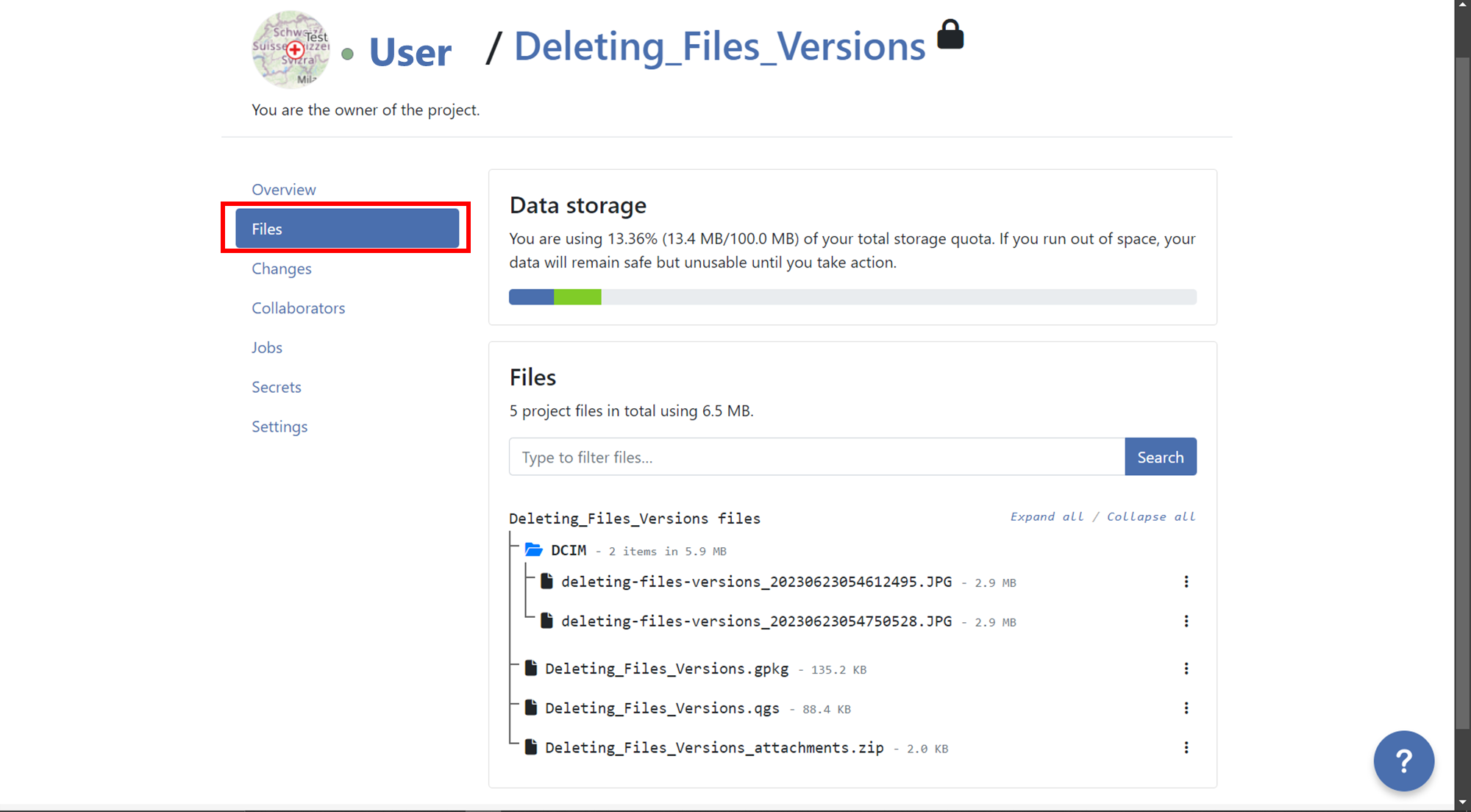
- Navigate to the Files section of your project.
- Locate the file containing versions you want to delete.
- Click the three-dotted menu (⋮) on the right side of the file name.
- Review the list of versions for that file.
- Click the red trash bin icon next to the version you want to delete.
- Confirm the deletion when prompted.
Optionally, enable Also delete
nversion(s) older than the selected version to remove all older versions.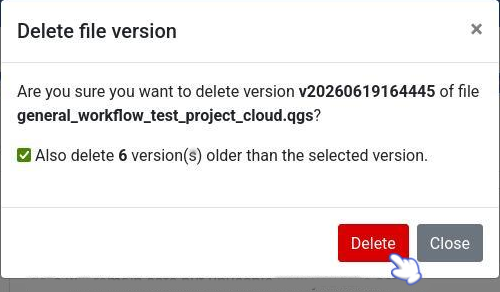
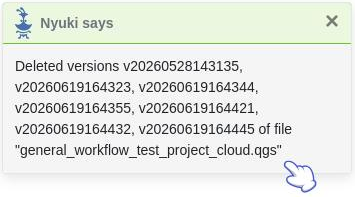
- A confirmation message displays, and the list updates to show remaining file versions.
Set Maximum Pixel Size of Attachments
Reduce image attachment pixel sizes to save storage space. This reduces image quality while using less QFieldCloud storage. Refer to the Attachment Widget documentation for step-by-step instructions.
Automating File Deletion with QFieldCloud SDK
Use the QFieldCloud SDK to automate attachment deletion and free up storage space without manual web interface tasks.
Set up a script or scheduled task using the QFieldCloud SDK to periodically purge specific file types (such as .jpg or .mp4).
For complete details and code snippets, see the QFieldCloud SDK Documentation.
Delete unnecessary files using glob patterns to free up storage quota on QFieldCloud:
client.delete_files(
    project_id="123e4567-e89b-12d3-a456-426614174000",
    glob_patterns=["*.csv", "*.jpg"],
    throw_on_error=True
)
qfieldcloud-cli delete-files '123e4567-e89b-12d3-a456-426614174000' '*.jpg'
qfieldcloud-cli delete-files "123e4567-e89b-12d3-a456-426614174000" "*.jpg"