Sensori
QField offre una gamma di funzionalità del sensore che consentono di raccogliere passivamente i dati del sensore in background, visualizzare i dati raccolti e salvarli in attributi di elementi appena digitalizzati.
Attivazione dei sensori
In QField, registered sensors are listed within the currently opened project file in a sub-menu that can be accessed via the "Side Dashboard" .
Workflow
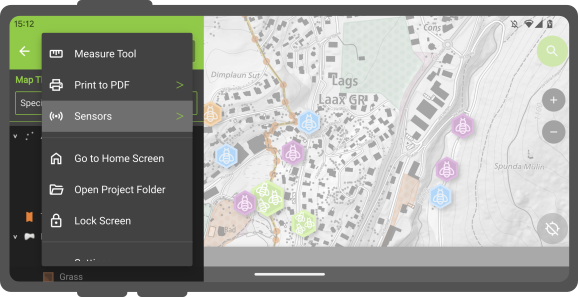
- Open the "Side Dashboard"
-
Tap on the 3-dotted-menu and choose "sensor"
-
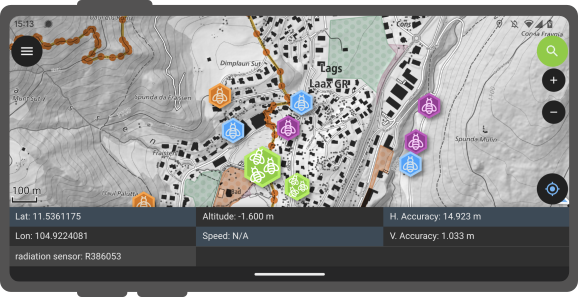
To toggle the passive collection of sensor data, simply click on a sensor name in the sub-menu. When active,a sensor icon will appear next to the sensor name, while when inactive, a dot icon will be shown. All active sensors that are collecting data will be listed in a sensors information table located at the bottom of QField's map canvas.
Tracciamento guidato da Sensori

QField enables you to initiate tracking sessions against a point layer, saving collected sensor data linked to your current position.
Workflow
- Open the layer properties of the point layer, where the sensor data will be stored.
- Direct to the attribute form layout.
- Set the default value to *"sensor_data('abc') where 'abc' corresponds to the name of the sensor.
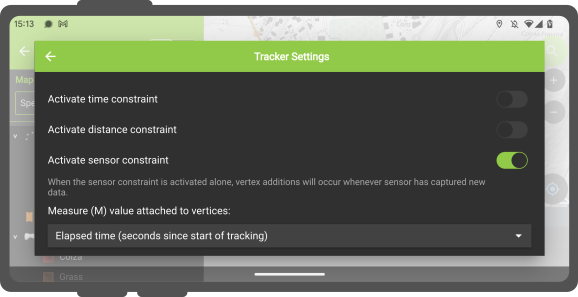
- Once this configuration is done, you can start tracking your position against the point layer. When starting the tracking session, a sensor constraint can be activated to ensure that added points occur every time a sensor has captured new data.