COGO - Framework Coordinate Geometry
What is COGO?
COGO is a framework that allows you to define a precise location of any spatial feature, making use of mathematical functions and measurements. By precisely providing QField with the coordinates, the bearing, or the distance to where the next point or vertex should be, it is possible to add highly accurate positioning information without actually having to physically go there.
Note
Across all COGO tools, QField provides dynamic visual guides. As you enter parameters, lines, circles, and points are drawn directly on the map in real-time to help you verify your inputs before committing the feature.
Example
Presume you want to map your property. However, parts of the property are covered in boysenberry bushes and you are unable to walk on one side of the property boundary. Instead, you can use QField and activate the COGO framework to draw the exact boundary.
COGO in QField
In QField there exist three COGO operations which can be activated only while being in editing mode. The user can create new vertices or point features using the following three options:
- Point by XY[Z]
- Point at intersection of two circles
- Point by distance/angle [to another point]
In the following sections, each option will be described and a detailed step-by-step introduction will be outlined.
Point by XY[Z]
It may be useful to add points in the field using an exact coordinate reference, for instance when receiving precise coordinates from an external source or to direct to a point of interest while being on holiday.
Workflow
- Open the QField project.
- Change to edit mode.
- In the top left, open the editing tools by tapping on the pen.
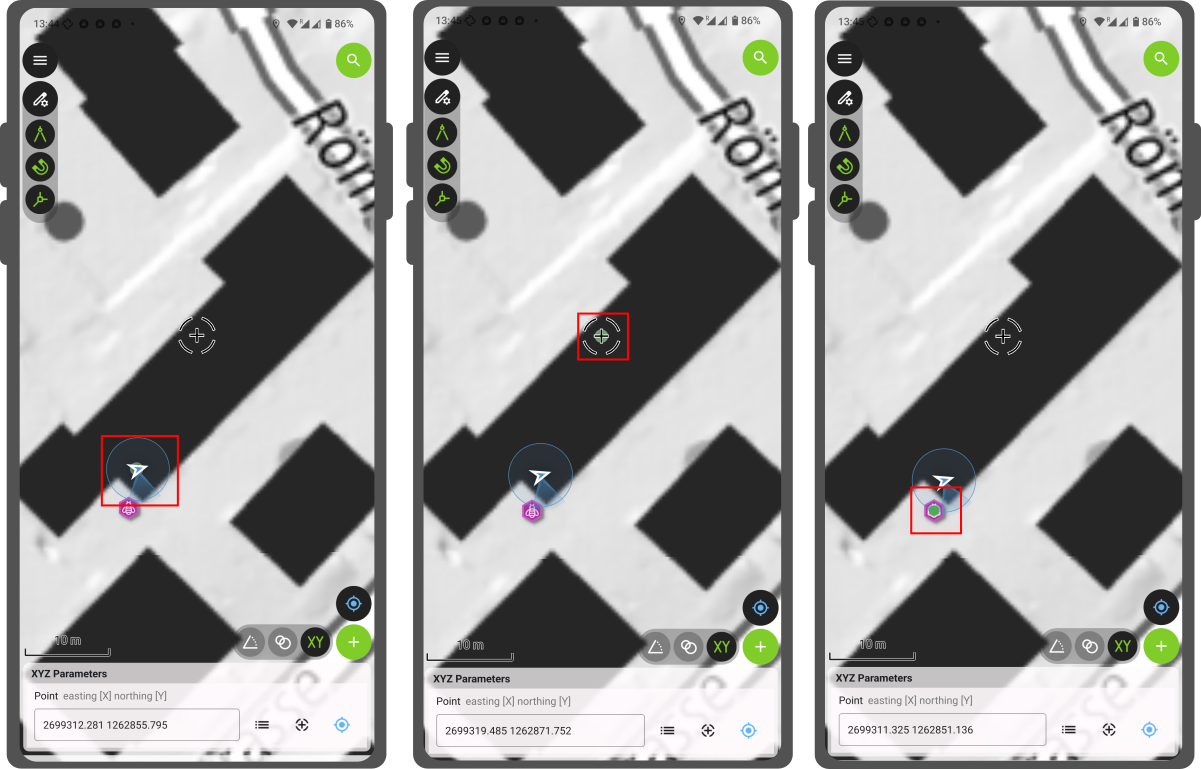
- Click on the compass and select 'XY'.
- In the window at the bottom, you can choose between three options:
- Make a point at the current location. For this, the positioning has to be turned on.
- Make a point wherever the crosshair is located on the map.
- Make a point on the point, which can be selected under the button with the three lines. (Note: If your target layer supports Z-dimensions (3D geometries), an additional input for Elevation will be available).
- Click ok - a green point will appear depending on the option you selected.
- Click on the green plus sign to add the feature.
Point at intersection of two circles
You can also draw two circles with a set radius and decide on which point they intersect to create a point. This is particularly useful if you want to add a feature that you cannot reach physically. A surveyor needs to digitize the centre of fields. Instead of walking in the centre of each of them, it is possible to draw two circles and then use the point where they intersect to add the feature.
Workflow
- Open the QField project.
- Change to edit mode.
- In the top left, open the editing tools by tapping on the pen.
- Click on the compass and select 'the two circles'.
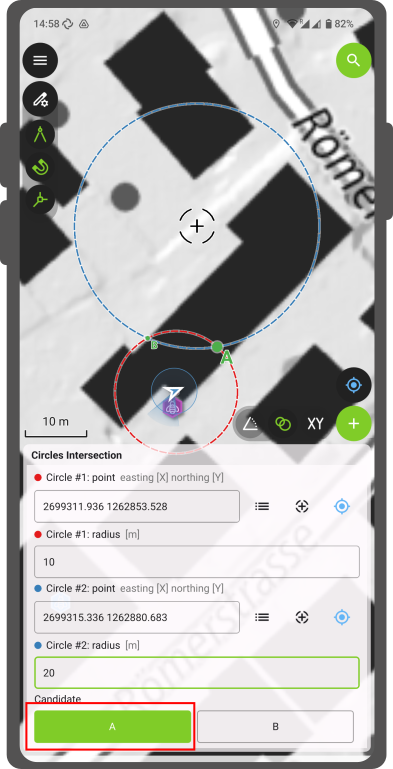
- A new window opens where you have to set the two center points of the two circles and decide on a radius for each.
- The two center points can be drawn the same way as outlined in the XY section.
- Once you set the center points and the radio, virtual circles will be drawn on the map, and the two points where the circles intersect will be labelled as "A" and "B".
- In the parameter list, toggle between Candidate A or B to choose the respective point that you wish to add.
- Click on the green plus sign to add the feature.
Point by distance/angle [to another point]
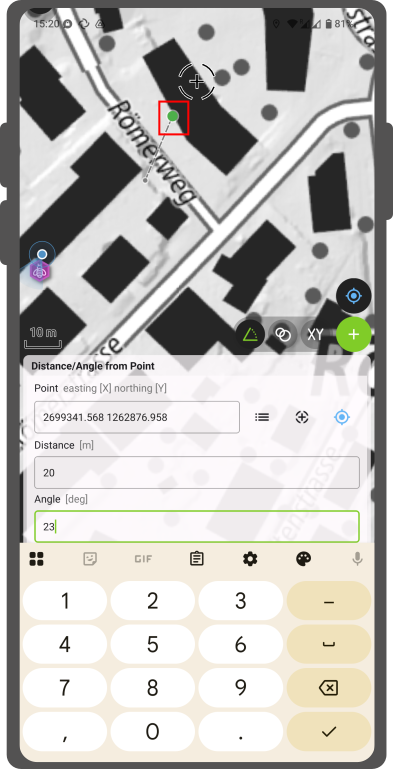
It is also possible to add a new feature set from a bearing and a specific distance. This can be particularly useful when working in the infrastructure domain, wanting to measure precisely the property boundary or the length of your pipes, cables, or other crucial assets.
Workflow
- Open the QField project.
- Change to edit mode.
- In the top left, open the editing tools by tapping on the pen.
- Click on the compass and select 'the angle symbol'.
- Add the location from which you want to take the initial distance and angle measurement. You can use exactly the same options as outlined in the XY section.
- Set the distance and the relative bearing to north to where the feature should be added. (Note: If your target layer supports Z-dimensions, an Elevation offset parameter will also be available).
- A dynamic visual line will connect the origin to the new calculated point on the map, and a green point will indicate the exact location of where the feature will be added.
- Click on the green plus sign to add the feature.