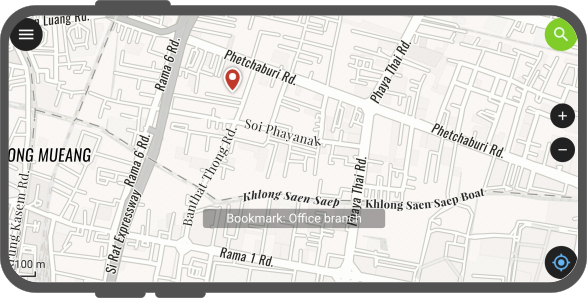
QField allows you to save and display bookmarks that will be remembered across sessions and projects.
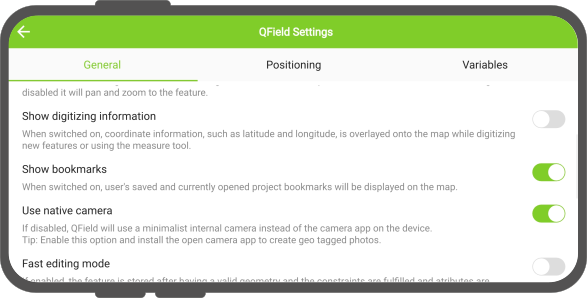
By default, QField will display bookmarks as marker overlays over the map.
Added bookmarks within QField are displayed across all projects and datasets.
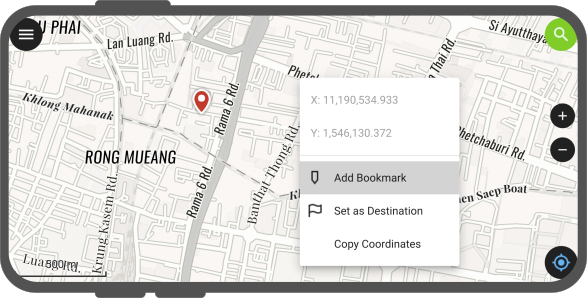
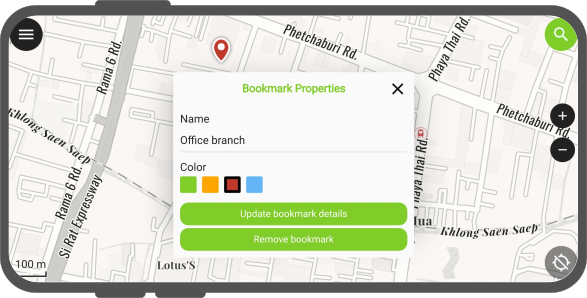
To add a new bookmark, simply long-press on the location on the map where you want to place the bookmark.
Tap the "Add Bookmark" action within the popped up menu.
Rename the bookmark and select a preferred color which will be used as a marker.
Option 2: From the location pie menu
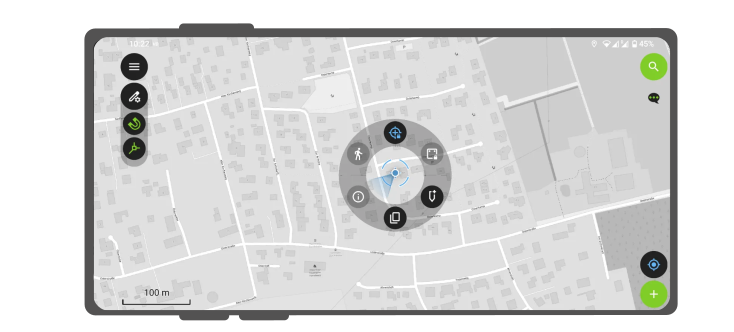
Tap on your current location.
The location pie menu will automatically open.
Tap on the "Bookmark" Symbol to the low right.
The bookmark menu will appear allowing you to write an appropriate name and assigning your desired colour
Tip
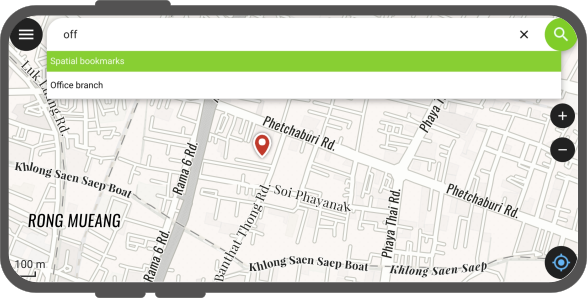
When adding a bookmark, the current map scale is taken into consideration to save an extent centered around the tapped coordination or current location. This allows you to determine the extent that will be used when double-tapping on a bookmark marker or selecting a bookmark item in the search bar.
When preparing a QGIS project for fieldwork, it may also be useful for you to enter a few bookmarks, which may be helpful for the field officers.
Luckily, QField can display and search for project-embedded bookmarks.
The addition and management of such bookmarks is done in QGIS itself.
Workflow
:material-desktop: Desktop
In QGIS choose a location for your bookmark.
There are three options to add a spatial bookmark:
Through the file browser.
Through the menu panel
Using the shortcut "CTRL + B"
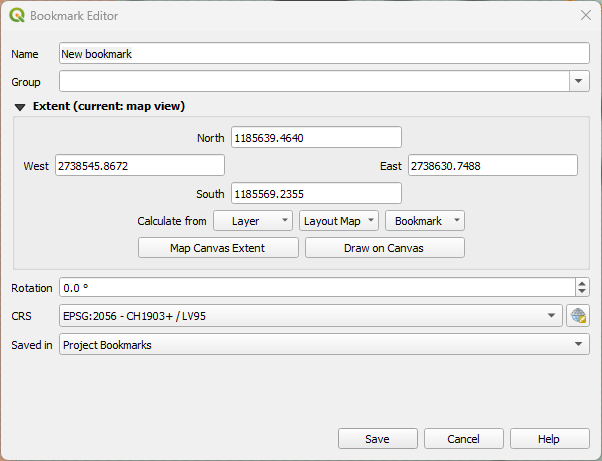
Choose your preferred option and enter a name
(Optional) you can set a map extent, if you want to specify the zoom level.
(Optional) you can also create different groups for your bookmarks, in case that you have a lot of places to revisit.
(Optional) maybe you want the marker of the bookmark to point in a certain direction, in which case you can rotate the marker symbol.