Processing object
In QField you can not only move or duplicate your features, you can also change, drop or add further geometries using further processes.
Accessing processing algorithms
Workflow
- Tap on the map canvas to select the feature(s), you wish to modify.
- Once selected, open the 3-dotted menu (⋮)
- Open the processing option and tap on Process Selected Feature(s).
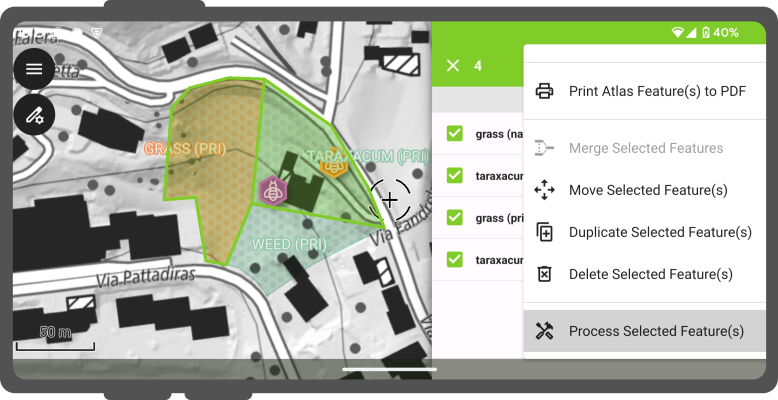
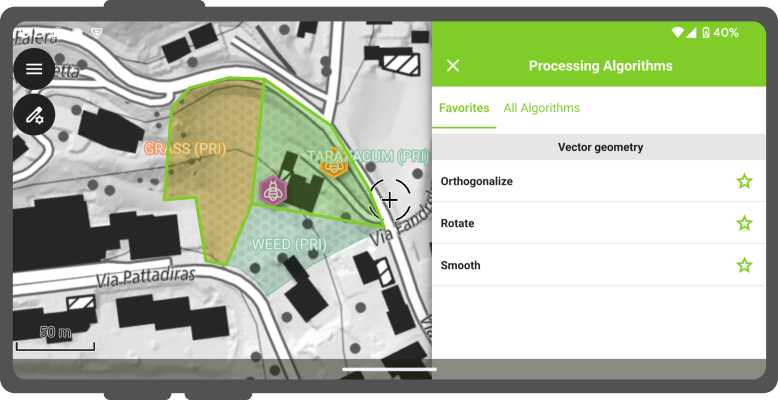
process selected features - You can select among All Algorithms and add them as Favorites if you like
Example
Smooth
- Select Smooth from the Vector geometry section.
- A new tab will open where you add your desired values. Note: If you are unsure what a process does, you can tap on the Help tab to read about the processing algorithm(s).
- Generally, a live preview of the manipulated geometry will be overlaid on the map canvas, so you know what you are doing.
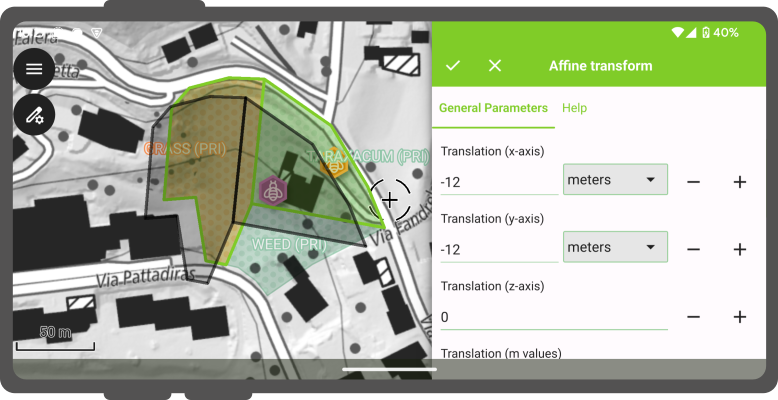
- Tap on the to apply the algorithm.