Conjuntos de datos compartidos
It is possible to use layers stored in a single location — referred to as "shared datasets folder" — across multiple projects.
Esto puede ayudar a reducir los requisitos de almacenamiento para grandes conjuntos de datos, como archivos ráster de ortofotos, archivos vectoriales de uso del suelo, etc., así como facilitar la gestión de las actualizaciones de los conjuntos de datos.
Hay dos posibilidades para compartir datos entre proyectos:
- Manual transfer: The to be shared datasets are manually copied to the devices
- Synchronization through QFieldCloud: The to be shared datasets are uploaded and stored in a dedicated project in QFieldCloud accessible to the pre-configured projects.
Gestión de rutas de datos localizadas en QGIS
Preparación en escritorio
When preparing a new project for QField, make sure the datasets you want to share across multiple projects are stored within the "Localized datasets" folder in QGIS.
Flujo
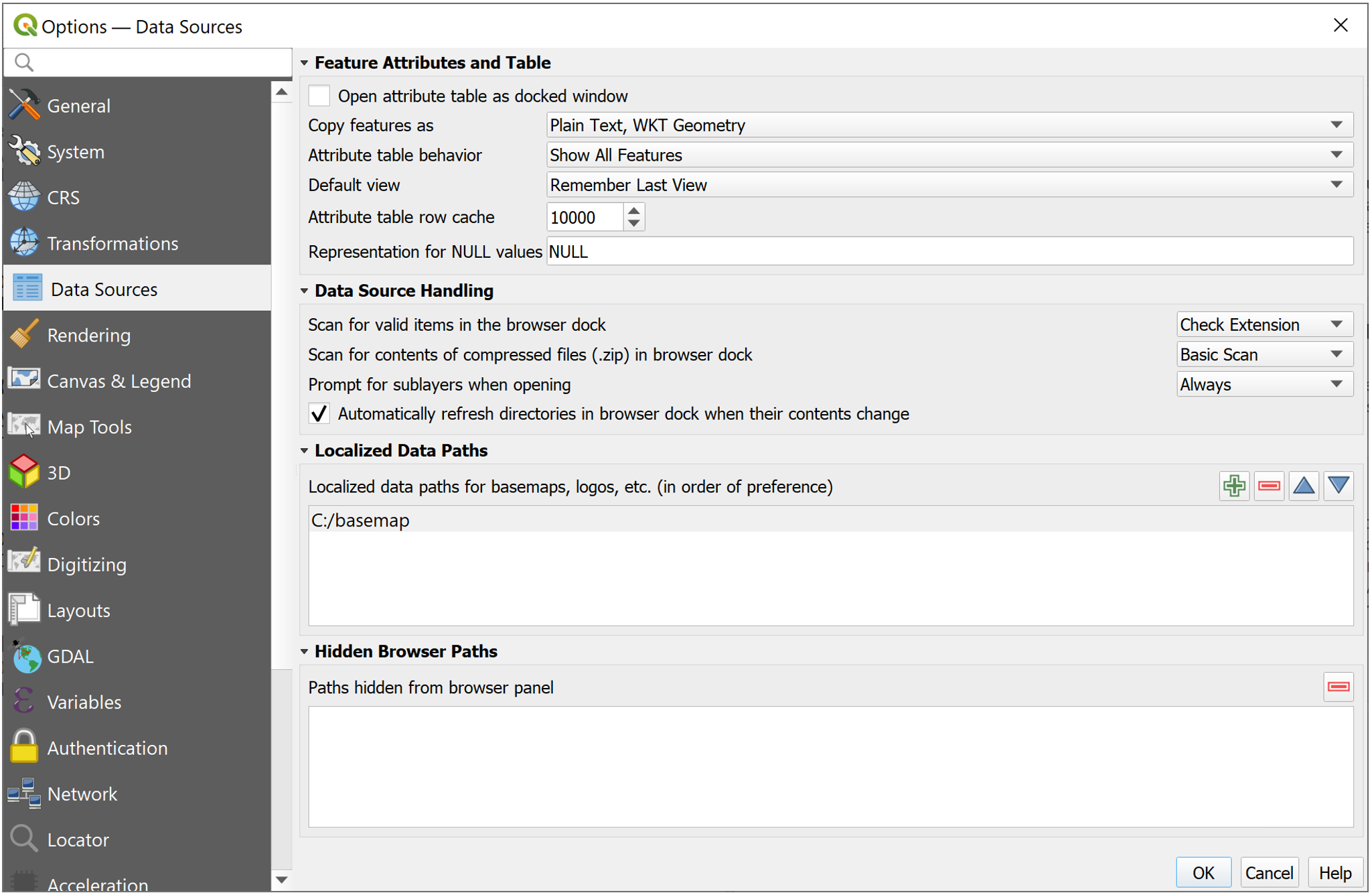
- In QGIS direct to Settings > Options > Data Sources
- Under the "Localized Data Paths" section add the necessary path where the datasets to be shared are located.
- Restart QGIS to apply the settings. Once correctly added, QGIS, QField/QFieldCloud will treat them as shareable datasets.
Manual transfer onto portable device in QField
QField
Para transferir manualmente los conjuntos de datos compartidos en QField, estos deben añadirse al directorio correcto de su dispositivo:
Flujo
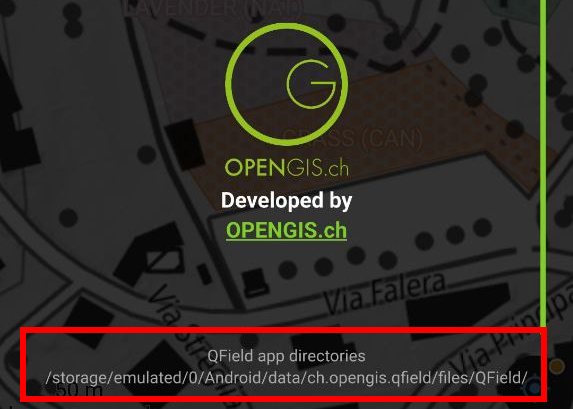
- Direct to local QField directory. If you are unsure you can find it by navigating to the "Side Dashboard" > 3-dotted menu > "About QField" 2 Copy your shared datasetse into the directory, ensuring that the datasets are added to the basemap folder. [App Directory]/QField/basemaps on your device. QField will automatically scan this folder for basemaps and other recognizable data.
Configuración de conjuntos de datos compartibles con QFieldCloud
QFieldCloud eases the management of shared datasets used in multiple projects recognizing QGIS' localized data settings.
Uploaded cloud projects reference the shared datasets stored in a designated QFieldCloud project named shared_datasets.
This special type of project can be created by the user in advance or is automatically created during a file upload using QFieldSync.
La estructura de archivos dentro del proyecto shared_datasets reflejará la estructura de la ruta localizada desde la que se originan los conjuntos de datos.
Por ejemplo, si su ruta de datos localizada de QGIS es ./GIS_Common/BaseData/ y tiene un archivo ./GIS_Common/BaseData/Administrative-boundaries.gpkg, aparecerá como Administrative-boundaries.gpkg dentro del proyecto en la nube shared_datasets.
Nota
Solo los colaboradores cuya función de usuario sea “gerente“ o “administrador“ (asignados directamente o como propietarios o administradores de la organización) pueden añadir archivos al proyecto shared_datasets.
Preparación de un proyecto QGIS que contiene conjuntos de datos compartidos
Flujo
- Follow the same Desktop Preparation (QGIS) steps outlined above.
- Make sure the Localized Data Paths in QGIS are correctly configured to point to the location of the shared datasets on your computer. This tells QFieldSync which files to treat as "localized" for cloud handling.
- Ensure your shared layers are part of your QGIS project and their paths are relative to one of the configured localized data paths.
Carga de conjuntos de datos compartidos en QFieldCloud
To upload your shared dataset to QFieldCloud, you need to use QFieldSync.
Flujo
- In QGIS, open your project and use the QFieldSync plugin to upload to or synchronize with QFieldCloud.
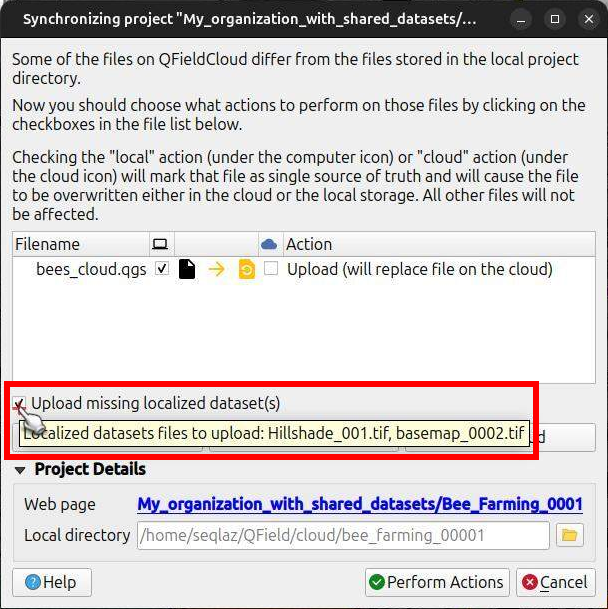
- At the beginning of the synchronization process, you will see a new Upload missing localized dataset(s) checkbox.
- Ensure this option is checked.
If you hover over the checkbox, you will see the list of files that will be uploaded.
This checkbox is only available for users with the permission to add files to the
shared_datasetsproject. - Click on the Perform Actions button to proceed.
During the upload phase, a list of the shared and regular project datasets will appear as they are being transferred.
This instructs QFieldSync to find the actual data files referenced by your Localized Data Paths and upload them to the
shared_datasetscloud project.
Revisión del registro de cargas
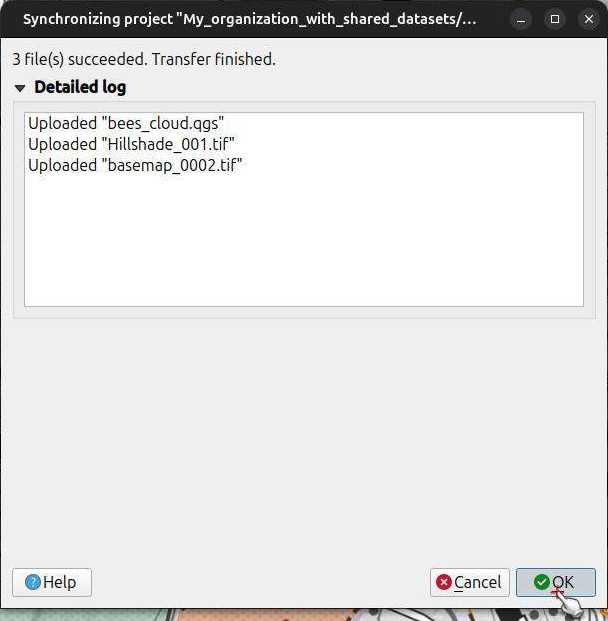
Una vez completada la sincronización, puede consultar el registro de QFieldSync. En él se detallarán los archivos cargados, incluidos los conjuntos de datos compartidos que se enviaron a QFieldCloud.
Localización de conjuntos de datos dentro de la interfaz web de QFieldCloud
Una vez cargados, estos conjuntos de datos compartidos aparecerán en dos lugares clave de la interfaz web de QFieldCloud:
- Dentro del propio proyecto dedicado
shared_datasets. - Se hace referencia a ellos en la pestaña Archivos de cualquier proyecto normal en la nube que los utilice.
Flujo
- Open your project in the QFieldCloud web interface.
- Click on the Files tab.
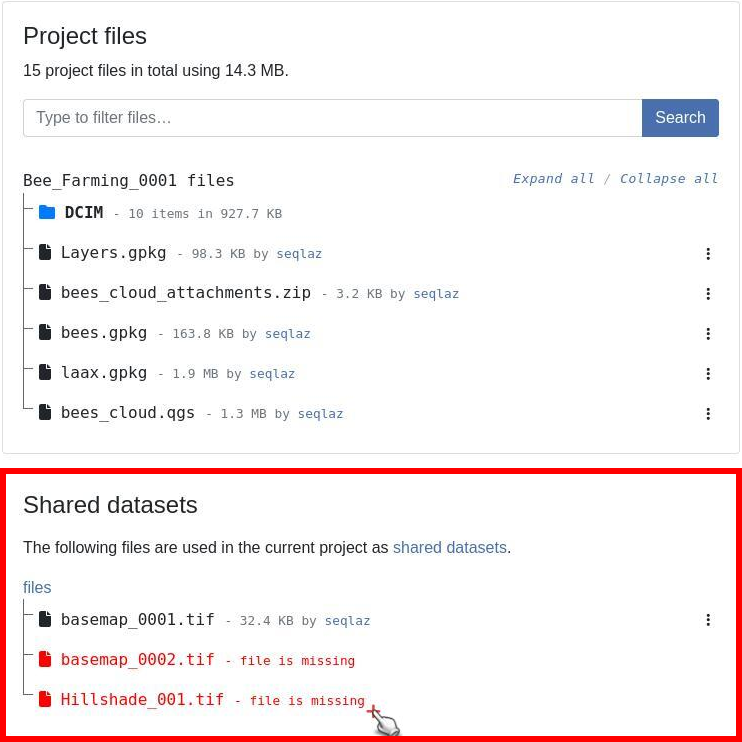
- Find the section named Shared datasets. This dialogue lists all datasets that have been identified and uploaded as shared/localized resources for your projects.
Troubleshooting Shared Datasets
For any cloud project containing shared datasets, QFieldCloud’s web interface will indicate the missing on the cloud (i.e., referenced by any project but have not yet been uploaded into the shared_datasets project) using a red color.
Esto se puede solucionar sincronizando el proyecto de nuevo desde QGIS con QFieldSync, asegurándose de que la opción "Subir conjuntos de datos localizados faltantes" esté marcada Sincronización con QFieldSync.
Como alternativa, si cuenta con los permisos necesarios, puede administrar el proyecto shared_datasets directamente (consulte la sección Sincronización directa del proyecto shared_datasets).
If you prepare a new QGIS project to use shared files that are already present in your QFieldCloud shared_datasets project, QFieldSync will recognize this.
The "Upload missing localized dataset(s)" checkbox should not appear.
Download to QField
Flujo
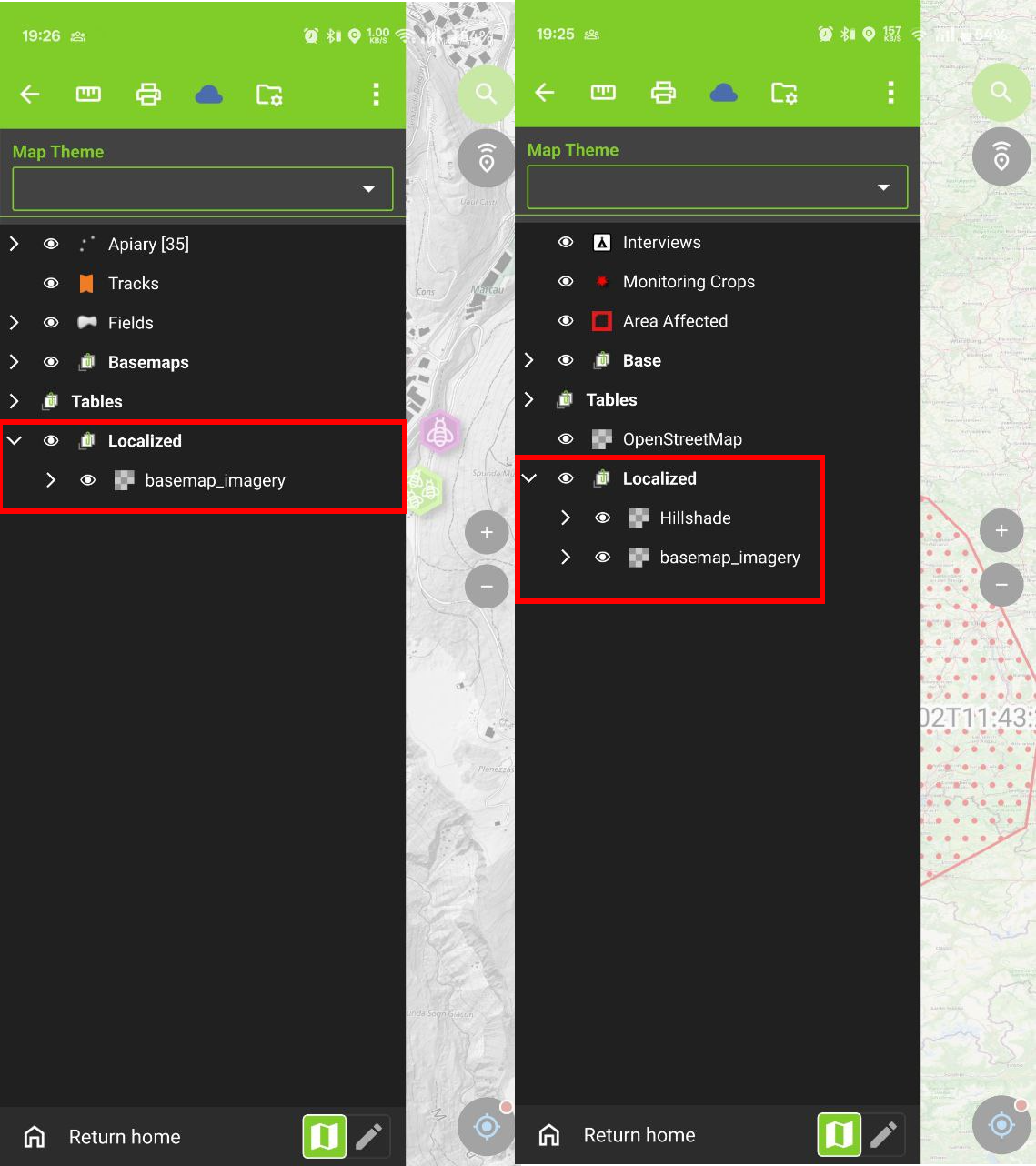
- Open the project containing the shared datasets and synchronize the project. A key benefit is that the download of these shared localized datasets is managed efficiently by QField. Each shared dataset will only be downloaded once, even if multiple projects use it. This saves storage space and synchronization time.
Direct synchronization to the shared_datasets project
En lugar de depender de la sincronización de proyectos individuales para rellenar el proyecto shared_datasets, los usuarios con los permisos adecuados pueden gestionar su contenido de forma más directa.
Con QFieldSync
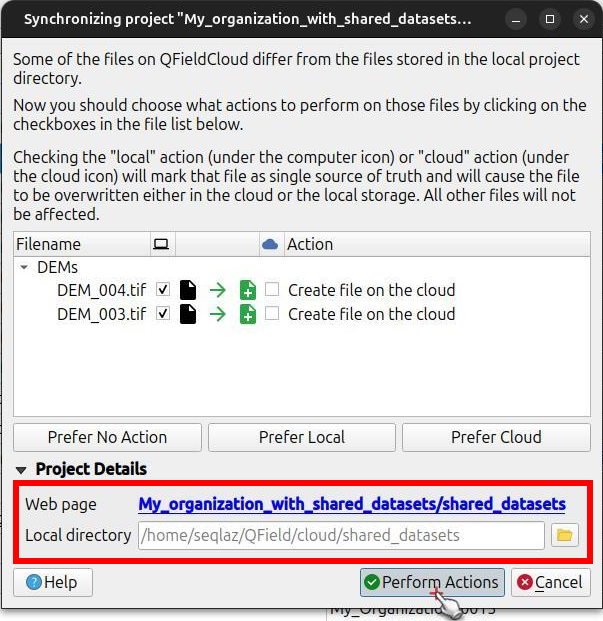
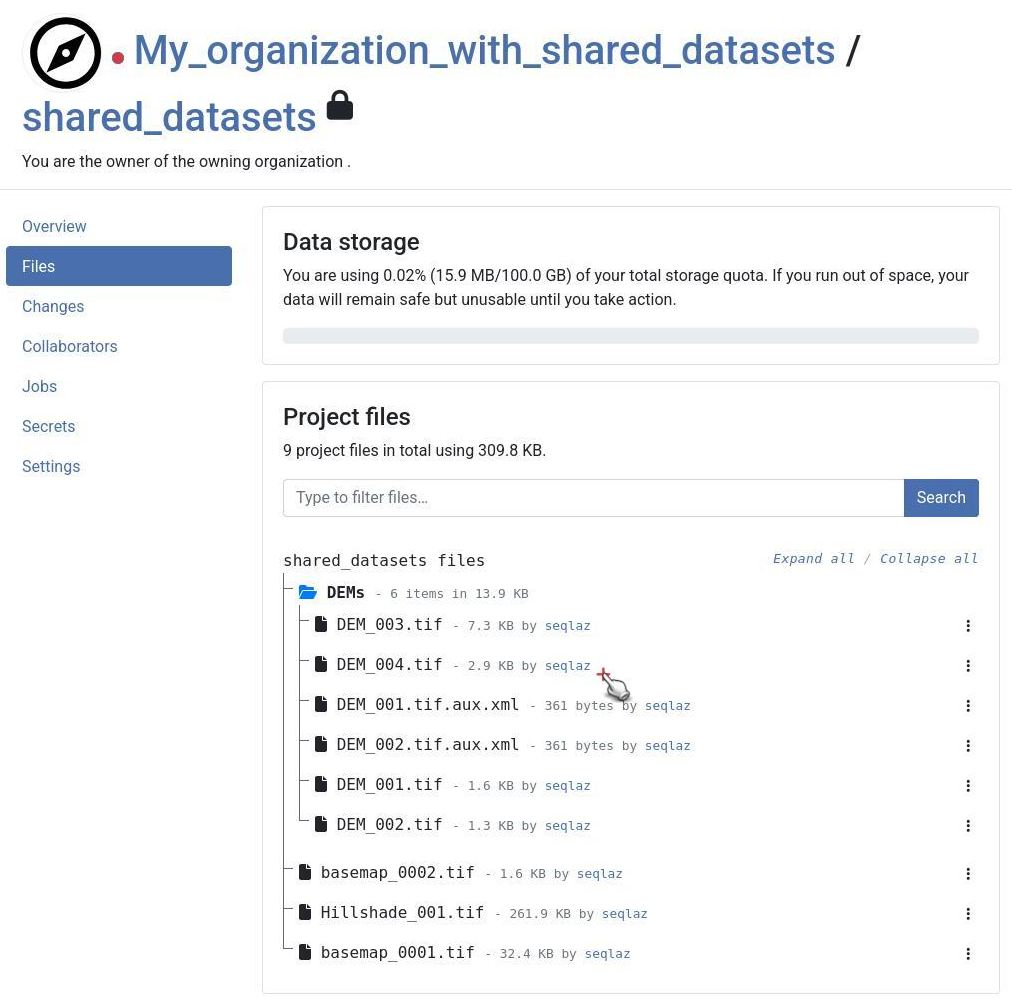
Los usuarios con permisos de "administrador" o "administrador" para el proyecto shared_datasets pueden administrar su contenido directamente usando QFieldSync:
Flujo
Desktop preparation
- In QFieldSync, download the
shared_datasetsproject from QFieldCloud to a local directory on your computer. - You can now add, update, or remove files within the pre-configured file directory of the localized datasets.
- Use QFieldSync (with the
shared_datasetsproject selected) to synchronize these changes directly back to the cloud.
Note
The specific user roles must be set for the shared_datasets project as for any other project.
A collaborator with an admin role of a project making use of a shared dataset will not automatically have the permission for the shared_datasets project.
Con la CLI de QFieldCloud
Los administradores pueden automatizar aún más la sincronización del proyecto shared_datasets utilizando la herramienta CLI oficial de QFieldCloud, qfieldcloud-cli (que forma parte del paquete Python qfieldcloud-sdk).
La herramienta se puede utilizar para sincronizar archivos QFieldCloud desde un directorio local. Comprueba automáticamente si hay cambios en la versión del contenido del archivo.
- Inicie sesión en QFieldCloud utilizando la CLI.
$ qfieldcloud-cli login USER PASSWORD
Log in super_user...
Welcome to QFieldCloud, USER.
QFieldCloud has generated a secret token to identify you. Put the token in your in the environment using the following code, so you do not need to write your username and password again:
export QFIELDCLOUD_TOKEN="TOKEN_HERE"
$ export QFIELDCLOUD_TOKEN="TOKEN_HERE"
- Enumera los proyectos de QFieldCloud y obtén el ID del proyecto
shared_datasets:
$ qfieldcloud-cli list-projects
Listing projects...
Projects the current user has access to:
| ID                                   | OWNER/NAME           | IS PUBLIC |
---------------------------------------------------------------------------
| 90e83606-dce8-4b0d-854a-388904d8a739 | USER/shared_datasets | 0         |
Nota
Tu ID de proyecto será diferente.
Suba los conjuntos de datos compartidos desde su directorio local de origen al proyecto shared_datasets:
qfieldcloud-cli upload-files 'YOUR_PROJECT_ID' "./path/to/your/local/shared/data/"
Puede configurar este comando como una tarea cron periódica que se ejecuta periódicamente (por ejemplo, diariamente) o activarlo manualmente en función de otras condiciones, para mantener actualizados sus conjuntos de datos compartidos en QFieldCloud.