QField Storage Management
The QField Welcome Screen presents two options to open projects:
- QFieldCloud projects: Access projects hosted on QFieldCloud.
- Open local file: Copy working files from a desktop computer to a mobile device for offline editing.
You can transfer QGIS project files and datasets onto your field device in several ways.
Project Preparation for Use in QField
You can transfer your projects to QField in two ways:
-
Transferring your projects manually:
Android Device
IOS Transfer
-
Upload and synchronize with QFieldCloud:
You can use QFieldCloud to synchronize your project to the cloud.
Storing Project Files in a Designated Folder
All relevant project assets should be stored inside a single project directory (and its subdirectories). A project directory typically contains:
- A QGIS project file (
.qgsor.qgz) - Vector datasets (GeoPackage, Shapefile, or GeoJSON)
- Raster datasets (GeoTIFF, JPEG, or ECW)
- Auxiliary style and reference files (
.qml,.sld, or SVG symbols)
QField App Directory
QField maintains a dedicated App Directory to manage shared resources across all local projects on a device. Use the App Directory to store custom fonts, basemaps, projection grid files, and plugins without duplicating files per project.
Locating the App Directory
You can locate your app directory in case you are under your settings
Flux
- Open a local project in QField.
- Open the Side Dashboard (☰).
- Tap the three-dotted menu (⋮) and select About QField.
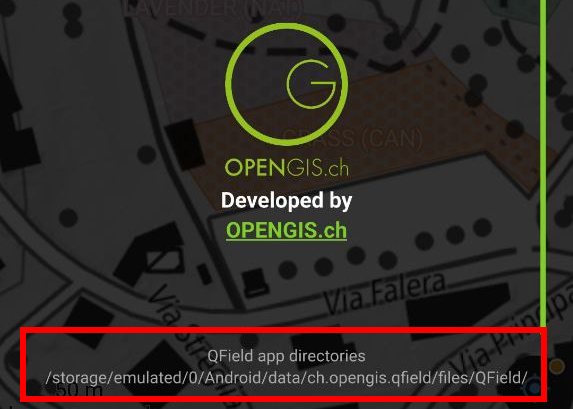
- Locate the application directory paths listed under App directories.
Common App Directory Paths
Depending on your target device, you should look for the app directory path as below.
- Android:
Internal Storage/Android/data/ch.opengis.qfield/files/QField - iOS:
Files App > On My iPhone/iPad > QField - Windows:
C:\Users\<YourUsername>\AppData\Roaming\ch.opengis.qfield\QField - macOS:
/Users/<YourUsername>/Library/Application Support/QField/QField - Linux:
/home/<YourUsername>/.local/share/OPENGIS.ch/QField
App Directory Structure
To properly structure the different parts of your project, QField is separated into several sub-directories
| Directory | Purpose and Contents |
|---|---|
auth/ |
Stores authentication configurations (such as OAuth.xml certificates) for secured web services (WMS/WFS). |
basemaps/ |
Contains shared basemap files (such as COG or MBTiles layers). |
fonts/ |
Stores custom font files (.ttf or .otf) used for layer labels and symbology. |
logs/ |
Stores GNSS connection logs for positioning troubleshooting and debugging. |
plugins/ |
Contains custom QML plugins that extend QField capabilities. |
proj/ |
Stores custom projection grid files (.tiff) for coordinate reference system transformations. |
Copying Projects to a Target Device
Project Manager
Installing QField on your smart device creates an application storage location containing three directories:
- Imported Datasets: If you have individual datasets that you want to add to existing project, temporarily, you can add them here.
- Imported Projects: If you want to copy paste your project, you can copy it into this folder.
- QField:
If you want QField to track (follow your specific edits inside) your changes, you have to either package the files using QFieldSync for manual export or to upload them to QFieldCloud.
General-workflow
Manual Transfer
- Package your QGIS project using QFieldSync or upload it directly to QFieldCloud.
- Copy packaged project directories into the
Imported Projectsfolder on your target device if you are not using QFieldCloud.
Depending on the device- the target paths are the following:
- Android:
Android/data/ch.opengis.qfield/files/Imported Projects - iOS:
On My iPhone/QField/Imported Projects
Upload to QFieldCloud
- Create a new project.
- Upload to QFieldCloud
Android Transfers
Transfer via USB Cable
- Connect your Android device to a computer using a USB cable.
- Follow system prompts for transferring files between computers and Android devices.
- Navigate to
<drive>:/Android/data/ch.opengis.qfield/files/on your device. - Copy project folders into Imported Projects or individual layers into Imported Datasets.
Google Drive and Cloud Storage Services
Using cloud storage services provides shared directory access between desktop computers and mobile devices.
Flux
- Package your QGIS project on your desktop computer.
- Upload the packaged project folder to Google Drive.
- Download the project folder to your target mobile device using the Google Drive app.
- Save downloaded folders into the Imported Projects directory.
- Collect data in the field using QField.
- Upload modified project folders back to Google Drive to sync edits with your desktop computer.
Share via Bluetooth
Transfer files wirelessly between computers and Android devices by configuring a Bluetooth file transfer connection.
iOS Transfers
Transfer via USB Cable
Connecting iOS devices to desktop computers requires copying root storage directories.
Flux
- Copy the entire
Imported Projectsdirectory from your iOS device to your computer using Apple Finder or iTunes. - Paste packaged project folders into the copied
Imported Projectsdirectory on your computer. - Copy the updated
Imported Projectsdirectory back to your iOS device and replace the existing folder.
iCloud and Cloud Services
Use iCloud as a shared workspace to download and upload project files.
Flux
- Upload packaged project folders to an iCloud directory on your computer.
- Download the project folder on your iOS device and move it into the QField
Imported Projectsdirectory. - Open the project in QField and collect field data.
- Upload updated project folders back to iCloud after fieldwork.
- Download updated project folders to your computer to inspect edits.
Share via AirDrop
AirDrop provides wireless file transfers between macOS and iOS devices.
Flux
- Right-click the packaged project file or folder on your Mac, select Share > AirDrop, and select your target iOS device.
- Save received project files into the QField
Imported Projectsdirectory on your iOS device. - Use AirDrop on your iOS device to transfer modified project files back to your Mac after fieldwork.
Importing Projects and Datasets
QField provides five methods to open local projects and datasets:
- importing a project folder

 ;
; - importing a compressed project ;
- importing individual datasets ;
- importing from a URL; and
- importing from a WebDAV folder.
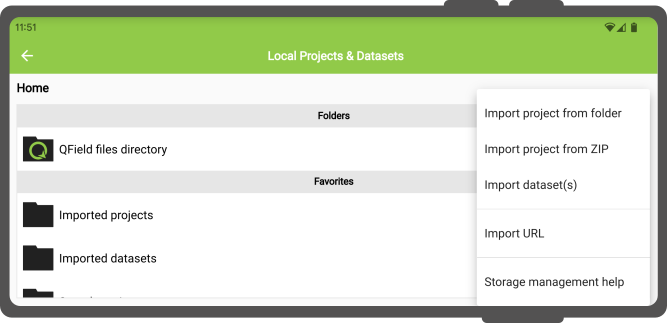
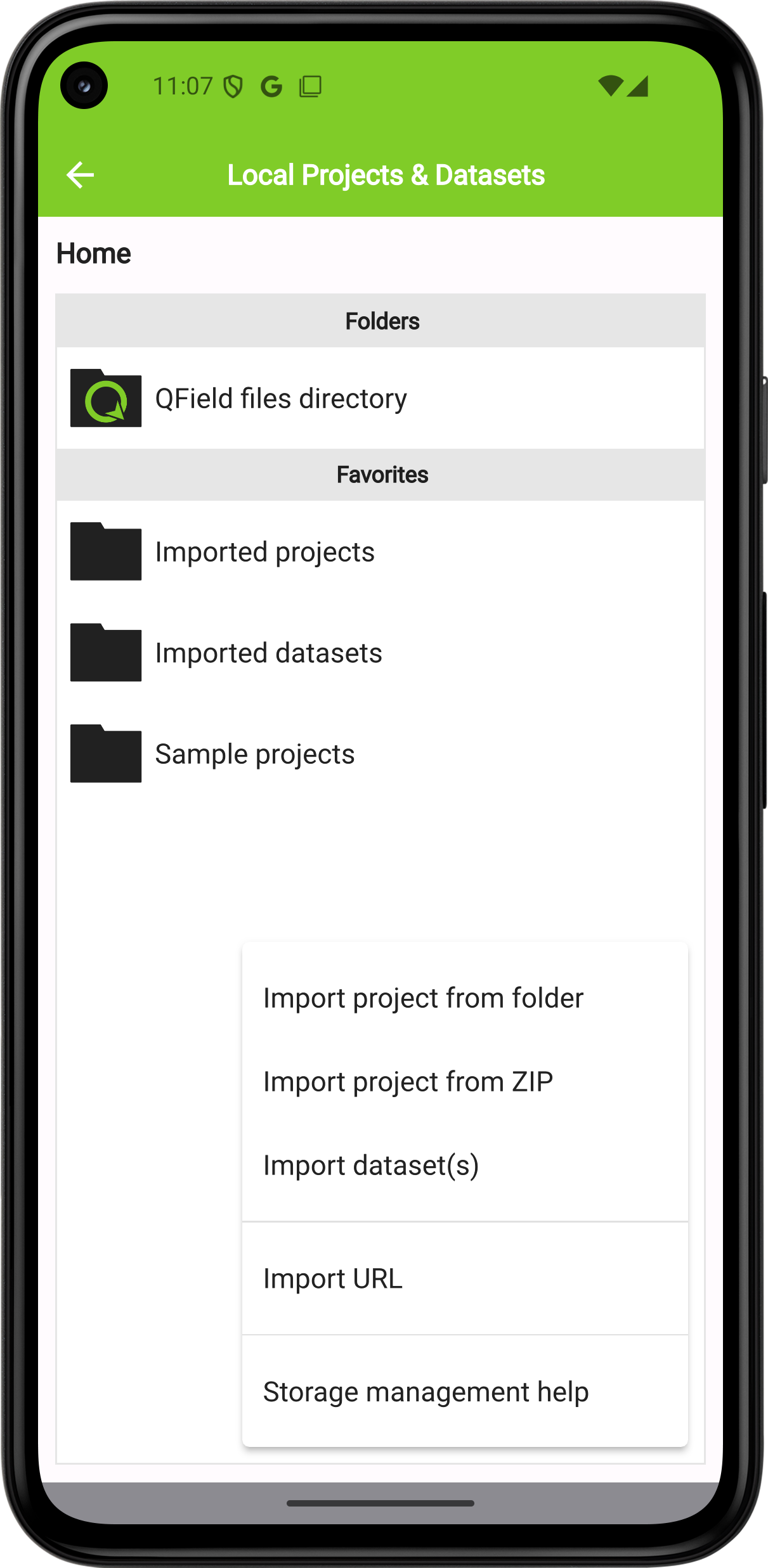
On Android and iOS, access import actions by tapping Open local files on the Welcome Screen and tapping the plus button (+) at the bottom right. Desktop operating systems (Windows, macOS, and Linux) support direct storage access and expose URL and WebDAV import options.
Importing a Project Folder
Tap Import project from folder and select a project directory using the system file picker. Re-importing a folder with an identical name overwrites existing project files in Imported Projects.
Note
Edits, additions, and deletions save to datasets inside the imported project directory rather than the original source directory.
Importing a Compressed Project
Import compressed .zip project archives into QField.
QField extracts archive contents into the Imported Projects directory automatically.
Importing Individual Datasets
Tap Import dataset(s) and select one or more spatial files in the system file picker. QField copies selected files into the Imported Datasets directory.
Note
Ensure you select all sidecar files when importing single datasets (for example, Shapefile imports require .shp, .shx, .dbf, .prj, and .cpg files).
Importing from a URL
Tap Import URL and enter a direct file URL. QField downloads and saves the content into Imported Projects or Imported Datasets.
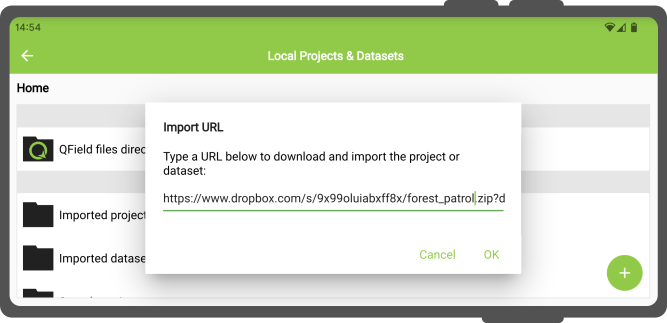
QField treats downloaded .zip archives containing .qgs or .qgz files as compressed projects.
Exporting Modified Projects and Datasets
Export modified files back to your computer using four methods:
- Exporting a project folder or dataset to a local directory
- Sending a compressed project folder via external applications
- Sending individual datasets via external applications
- Transferring files directly using a USB cable connection
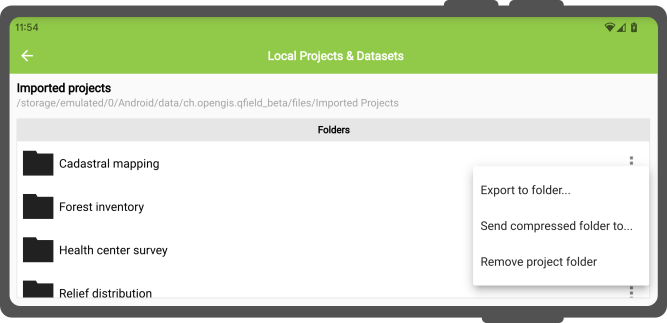
Access export options using the action menu inside the local file picker screen.
Exporting to a Directory
Tap Export to folder and select a target destination directory. Use this action to copy modified project files to folders managed by synchronization tools like Syncthing or cloud storage providers like Nextcloud.
Note
Exporting content to an existing folder overwrites files with matching names.
Sending a Compressed Project Folder
Tap Send compressed folder to... to compress a project directory into a .zip archive.
Select your preferred application in the native sharing dialog to send the archive.
Sending an Individual Dataset
Tap Send to... on individual datasets to share files via email, messaging, or cloud storage applications.
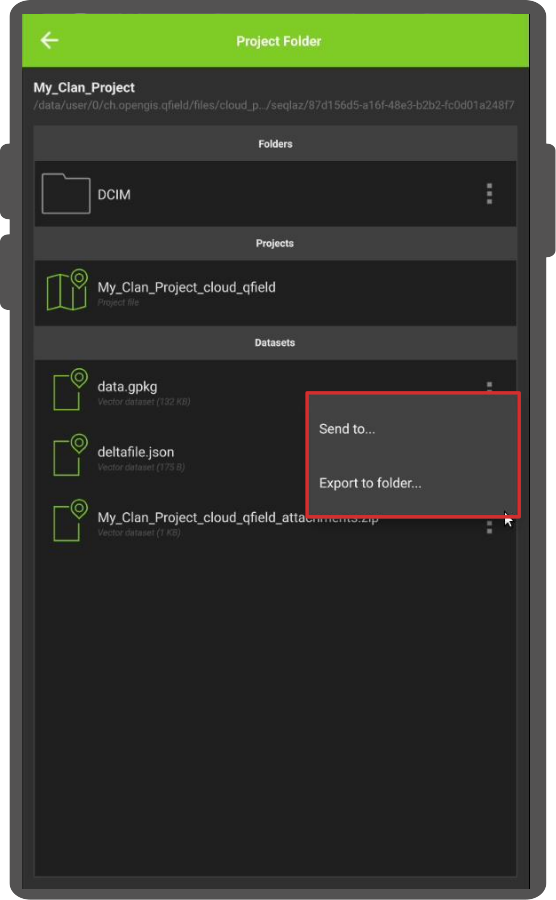
Export datasets directly from synchronized QFieldCloud projects:
Flux
- Open the Side Dashboard in your QFieldCloud project and tap the folder icon with the gear.

- Locate your project datasets (offline datasets store inside
data.gpkg). - Tap the three-dotted menu (⋮) next to a file or folder.
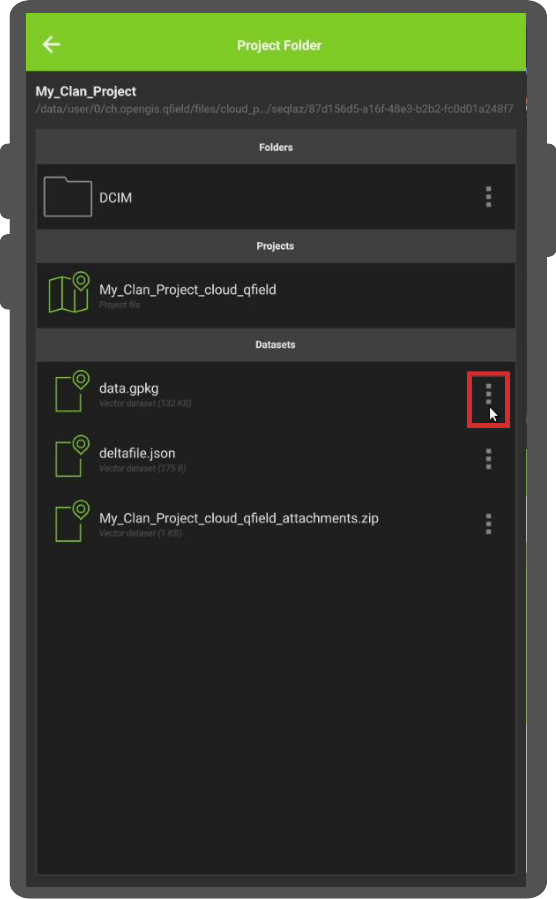
- Select Send to... or Export to folder... and follow system prompts.