QField Plugins
QField includes a QML/Javascript plugin framework to extend application capabilities and script custom field workflows.
Plugin Types
QField supports two plugin deployment types:
- Project-Specific Plugins: Bound to individual QGIS project files and active only while the project is open.
- Application Plugins: Installed globally across QField and active across all projects upon application launch.
Note
QField will display a permission dialog before activating a plugin, allowing you to grant or deny execution permissions for individual plugins.
Project-Specific Plugins
Project-specific plugins deploy as sidecar .qml files stored in the same directory as the QGIS project file.
The QML plugin file name must match the QGIS project file name exactly.
For example, if your project file is named tree_inventory.qgz, the main QML plugin file must be named tree_inventory.qml.
Workflow
Deploying via QFieldCloud:
- Add the
.qmlplugin file to your local cloud project folder on your desktop computer. - Synchronize the project using QFieldSync in QGIS to deploy the plugin file to mobile devices.
For non-cloud projects, refer to the Storage Access Documentation to transfer project files and .qml sidecar files onto mobile devices.
Application Plugins
Muncă de teren
Application plugins install globally inside QField from zip archive URLs or community repositories.
Flux
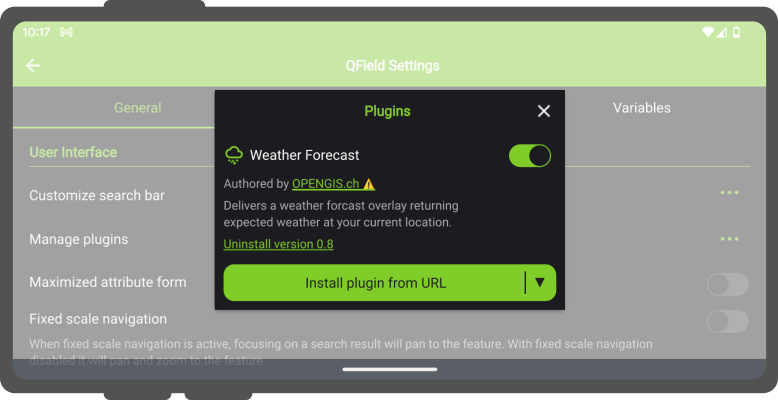
- Open the Side Dashboard and tap the gear icon to open Settings.
- Tap Plugins.
- Install an application plugin using one of two options:
- Install from URL: Tap Install plugin from URL and enter a direct web link pointing to a zipped plugin file.
- Community Repository: Select a plugin from the list of Available Plugins developed by the community.
- Toggle the activation switch next to installed plugins in the plugins list to enable or disable them.
Developing Plugins
To build custom QML and JavaScript plugins for QField, refer to the official QField API Documentation and the community Plugins Reference.