Navigation
QField offers navigation functionalities to help orient yourself in the field and accurately reach a given destination.
Activating navigation
There are multiple ways in which you can set a destination point and start navigating to it. Of course, if you want to navigate to a target, your localization must be turned on.
Flux
Option 1 - Through the map canvas:
- Long-press on your target destination and select Set as Destination in the pop-up window.
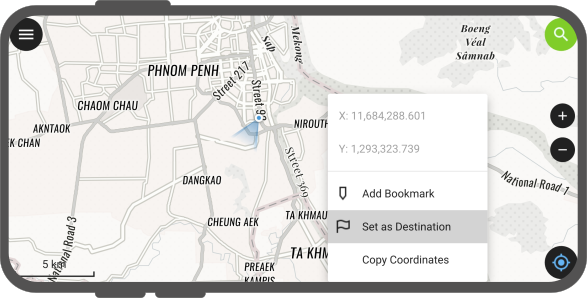
Option 2 - Search Bar / Feature Search:
- When opening the search bar, you can search for:
- Objects within your layers.
- Specific Coordinates.
- Click on the purple flag, next to the resulting option(s).

Option 3 - Feature Form Menu:
- Click on the object, you want to navigate to.
- Open the 3-dotted menu and select Set Feature as Destination
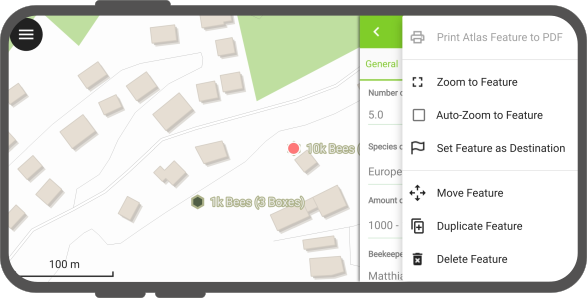
Option 4 - Complex Shape Navigation:
You may want to navigate to an object, with a complex geometry. QField lets you select to the specific corner you want to navigate to.
- Click on the object, you want to navigate to.
- Open the 3-dotted menu and select Set Feature as Destination
The Navigation panel will open and the and allow you to switch between the different corners.
Terminating navigation
Flux
Option 1 - Through the Navigation Menu
- Long-press on the located on the right of the Map Canvas
- Press on Clear destination.
Option 2 - Through the Destination Marker:
- Tap or Long-Press on the Destination Marker
- Tap on the Rubbish Bin to clear the destination.
Recenter to destination
QField can automatically re-center the map canvas from your current position to the target.
Flux
- Tap on the to re-center to your target.
- Tap on the crosshair to re-center to your current position
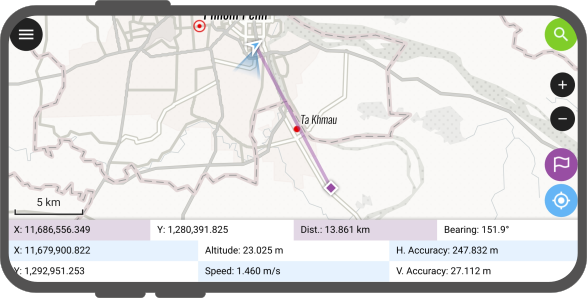
Navigation panel and settings
Once a target has been set, a new window will appear on the map canvas, which will show you
- The Coordinates
- The Distance to the target
- The Bearing to the target.
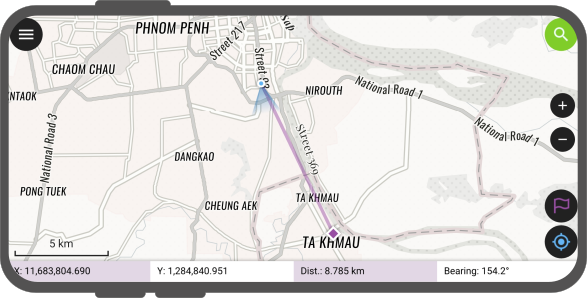
Precise view
If you need a more precise way of directing to your target, you can enable the Precise View Panel in two ways.
Flux
Option 1 - Through the Navigation Menu
- Long-press on the located on the right of the Map Canvas
- Toggle Always show precise view.
The Precise View Panel will appear below the Navigation Panel
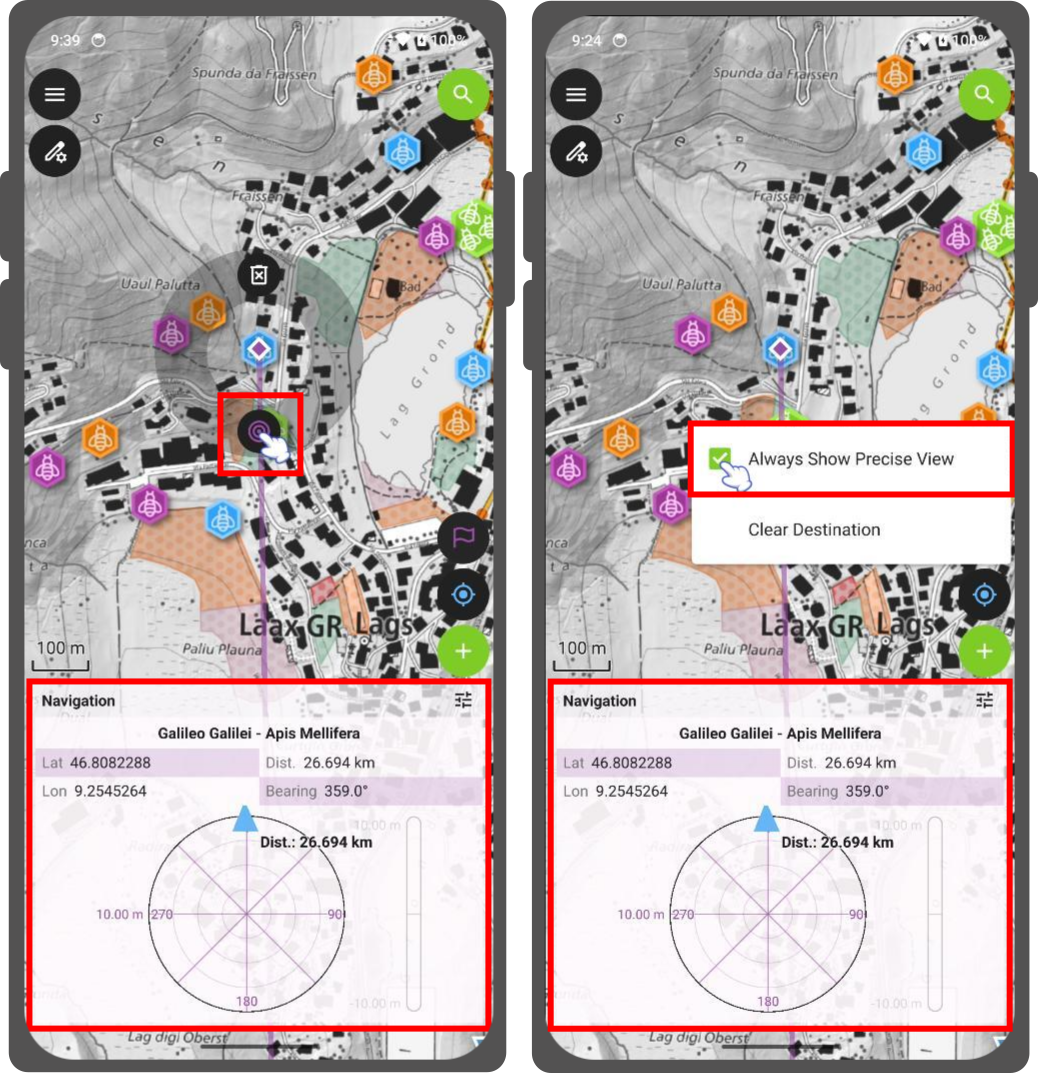
Option 2 - Through the Destination Marker:
- Tap or Long-Press on the Destination Marker
- Tap on the Spiral to enable the Precise View Panel.
The Precise View Panel will only appear once your distance to the target is below the chosen Precision Threshold, and your localization has an accuracy level of less than half of that threshold.
Your Target will turn Green when your location reaches the target
When your distance to the destination falls within the precision threshold, QField emits an acoustic Ping. When you get closer to the destination, the number of Pings will increase, providing real-time audio proximity feedback.
Example
If your precision threshold is set to 1 meter and your GNSS accuracy is 0.05 meter, the view turns green when you are within 15cm of the destination.
Tip
It is advisable to clear any destination when finishing a mapping session. Otherwise QField may memorize that a destination was set and lead to random errors when opening QField in the next session or with a different project.
Precise view settings
Flux
You can modify the precision threshold and enable the audio feedback from a configuration menu.
- To open it, tap the Setting button (☰) located in the header of the navigation panel.
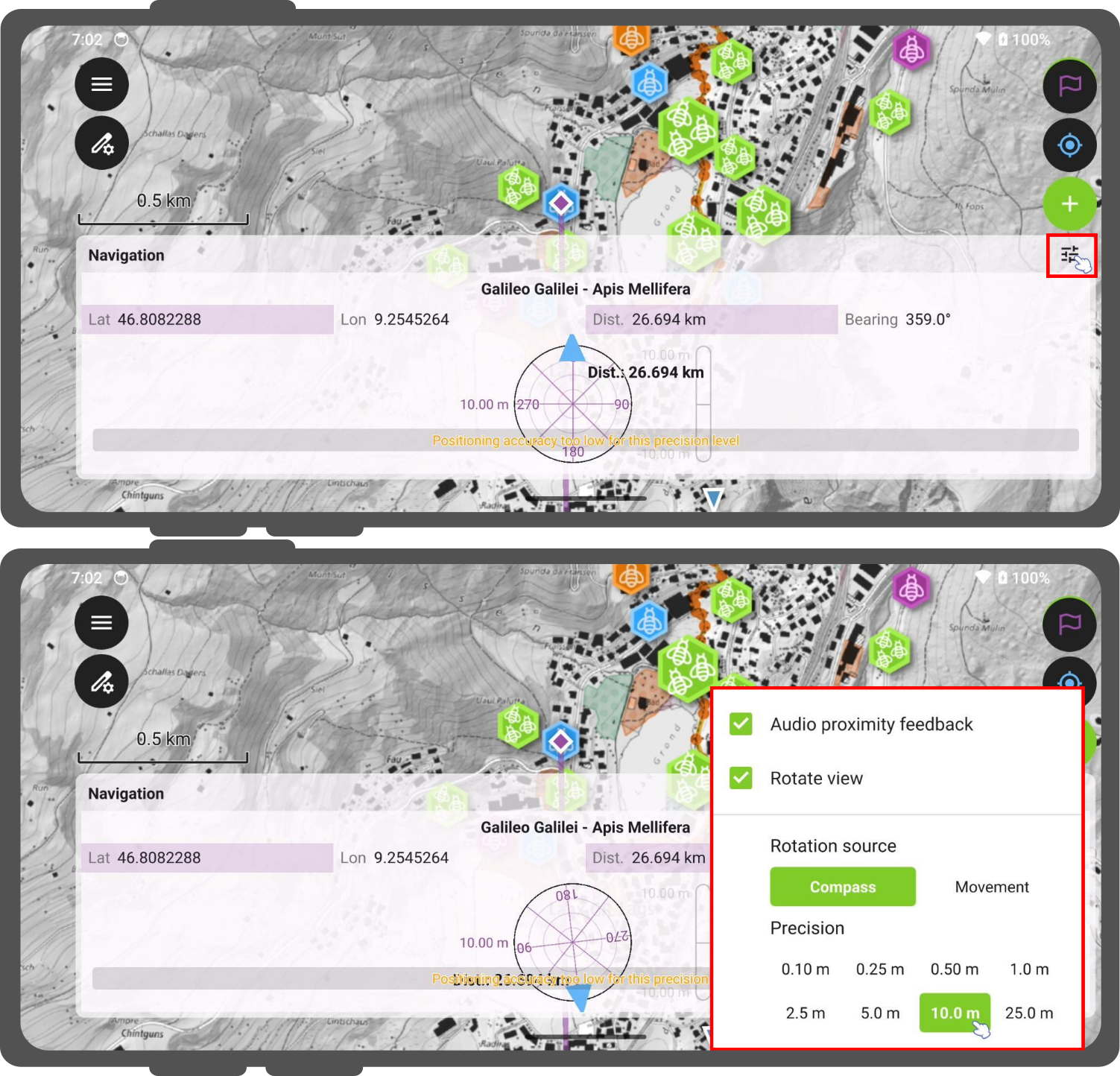
Within this menu, you can configure:
- Audio proximity feedback: Toggle the acoustic proximity pings on or off.
- Rotate view: Toggle whether the entire precision dial rotates dynamically. When unchecked, the dial locks into a static North-Up orientation.
- Rotation source: Choose the sensor input used when Rotate view is enabled:
- Compass: The dial rotates dynamically using your device's internal magnetic compass.
- Movement: The dial uses GNSS-derived heading calculations. This orientation method is gated at a minimum speed threshold of 0.8 km/h to filter out stationary noise and jitter. When you stand still, the dial freezes cleanly at your last valid heading. Devices lacking native speed tracking data automatically fall back to standard heading validity flags.
- Precision Picker: You can choose your position threshold.