Kirjanmerkit
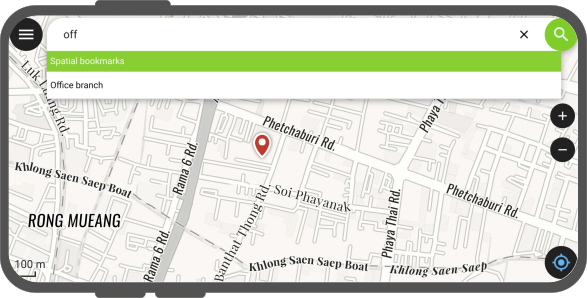
QField allows you to save, organize, and navigate to spatial bookmarks across sessions and projects. By default, bookmarks are displayed as marker overlays on the map, searchable via the search menu, and accessible from a dedicated list panel.
Bookmark types
QField can handle two distinct types of spatial bookmarks:
- User Bookmarks: You can create bookmarks directly inside QField. You can access, edit, export and group them by colors across all your local projects.
- Project Bookmarks: These come with your QGIS project file (
.qgs/.qgz) on the desktop. These appear under the Project bookmarks section header in the list view and are read-only in QField.
Bookmark interaction
You can either interact with bookmarks directly on the map canvas or through the Bookmark List. If you want to see bookmarks on the map, you will have to enable them under the general settings.
Workflow
- Open the Side Dashboard.
- Tap the 3-dotted menu icon to open Settings.
- Under General, toggle Enable Bookmarks.
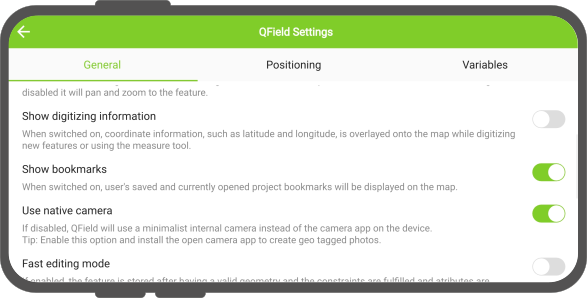
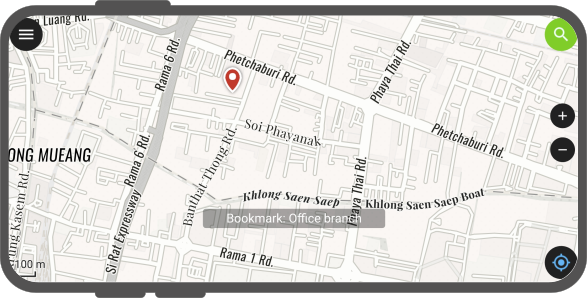
Once enabled you can either Display their name by single-tapping on the bookmark or re-center and zoom to the map extent of where the bookmark was saved by double-tapping on it.
Bookmark list
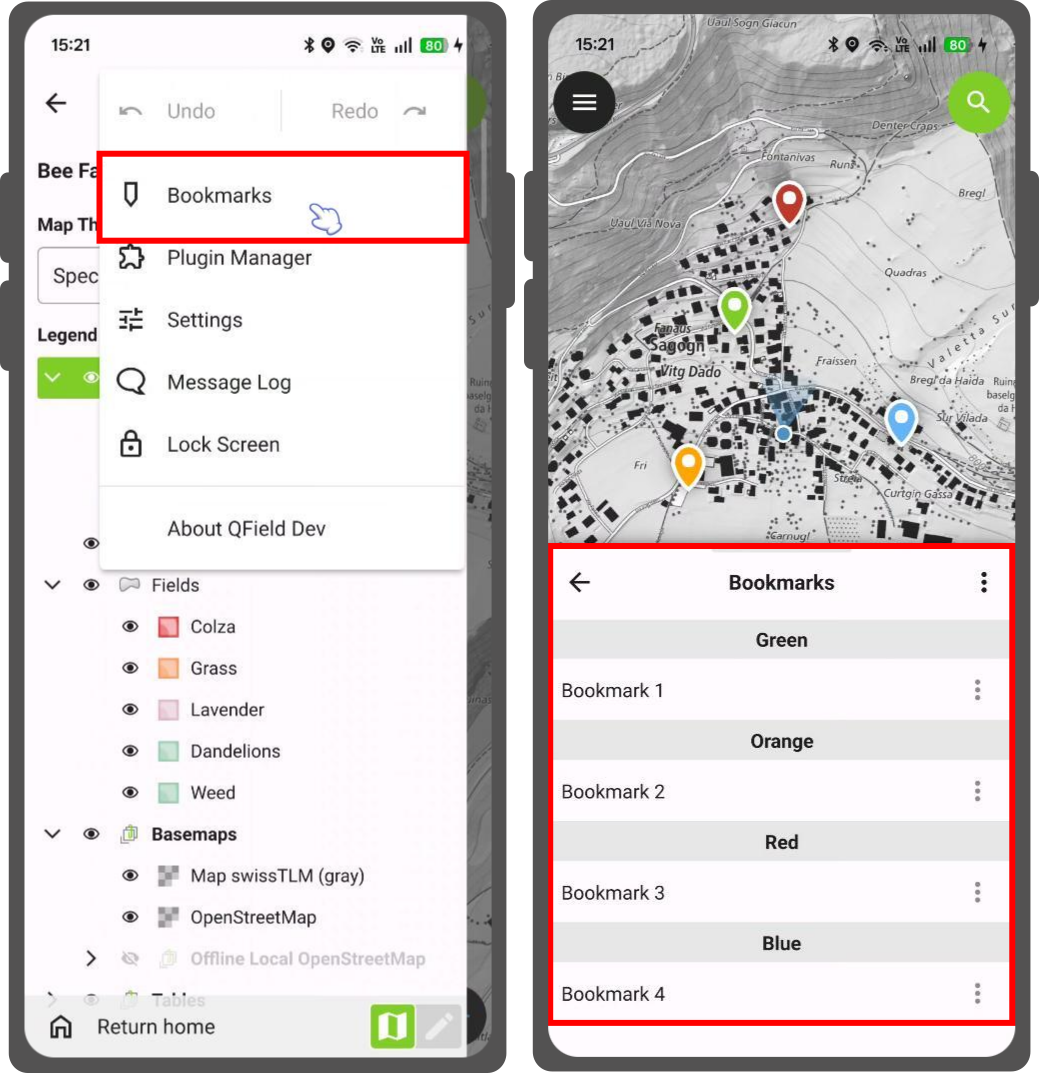
To see all your saved bookmarks at once you can access the Bookmark List.
Workflow
- Open the Side Dashboard.
- Tap the 3-dotted menu and select Bookmarks in the menu.
- The Bookmark List will open, categorized into color groups (Green, Orange, Red, Blue). If there are project bookmarks, which were created in QGIS before, they will be shown in this list
- Tap any bookmark in the list to instantly jump to its location on the map.
Adding a new bookmark
Maastotyö
Bookmark locations capture both the target point coordinates and the active map scale to preserve your preferred zoom level.
Workflow
Option 1: Long-Press on the Map
- Long-press on the map canvas at the desired location.
- Tap Add Bookmark in the pop-up context menu.
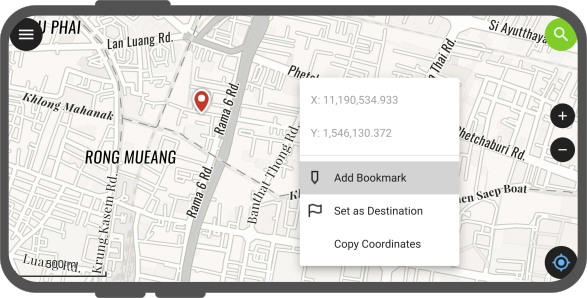
- Enter a custom name and select a color marker group (Green, Orange, Red, Blue).
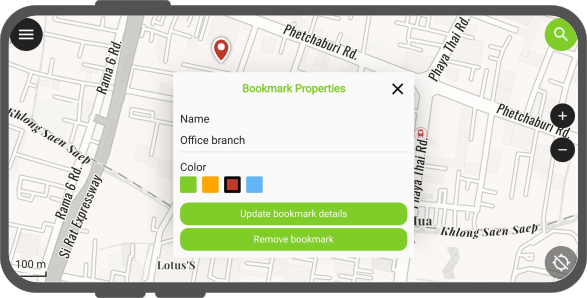
Workflow
Option 2: Location Pie Menu
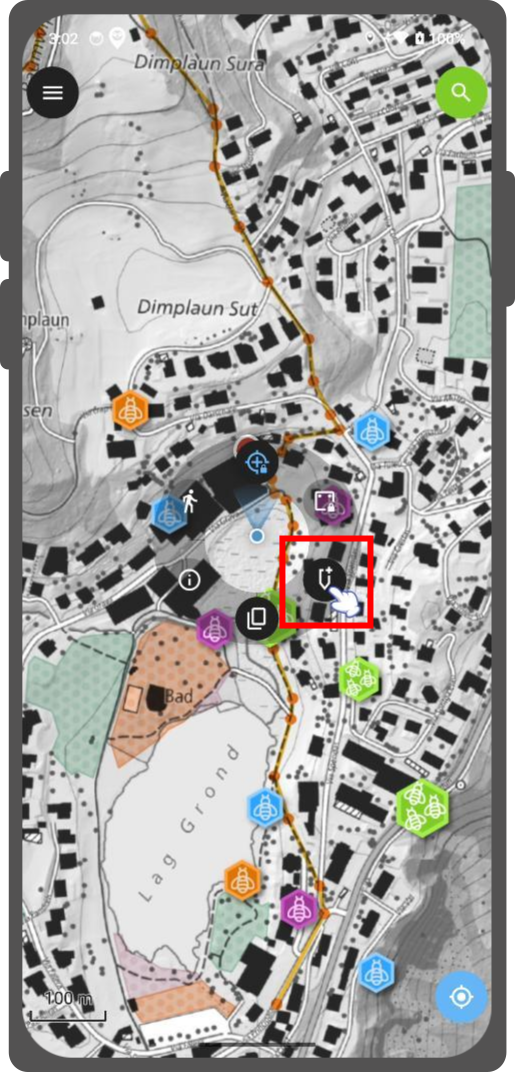
- Tap on your current location marker on the map canvas.
- Tap the Bookmark symbol in the bottom-right of the pie menu.
- Define the name and select a color.
Managing and exporting bookmarks
You can edit, copy and delete your own bookmarks either one-by-one or multiple at the same time. You can also export them as standalone vector datasets, such as GeoPackages.
Individual bookmark actions
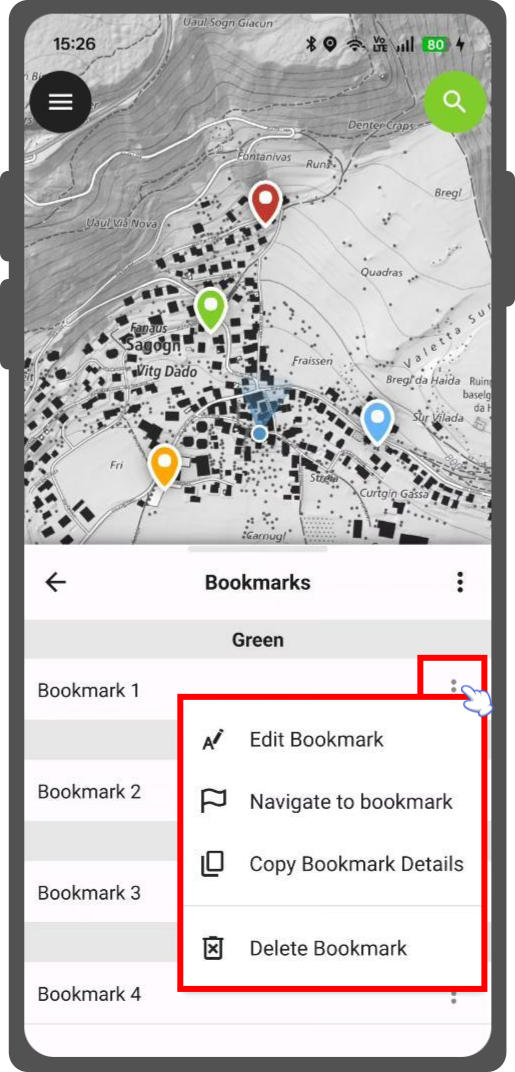
Under the Bookmark List Panel, tap the 3-dotted menu (⋮) next to the user bookmark in the Bookmark List panel to access quick actions:
- Edit Bookmark: Modify the name or change the color group.
- Copy Bookmark Details: Copies the bookmark name and its geographic coordinates (formatted in map CRS) directly to your clipboard.
- Navigate to bookmark: Sets the location as your active navigation destination.
- Delete Bookmark: Permanently removes the bookmark.
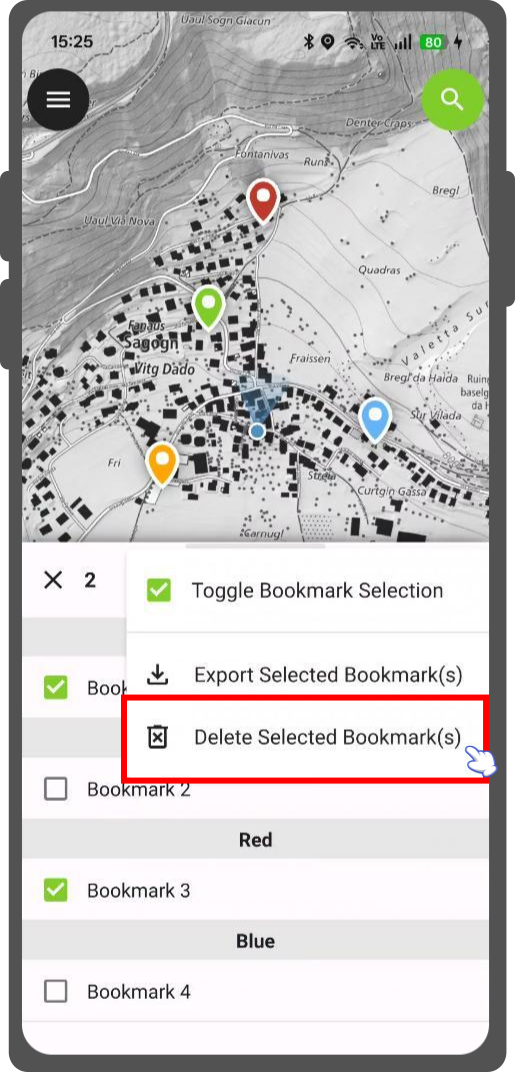
Multi-selection and deletion
Workflow
- Open the Bookmarks List.
- Long-press on any user bookmark, or tap the top 3-dotted menu (⋮) and select Toggle Bookmark Selection.
- Check the boxes next to the bookmarks you wish to select.
- Tap the 3-dotted menu (⋮) and select Delete Selected Bookmark(s).
Exporting bookmarks
You can export your user bookmarks into a standalone GeoPackage (.gpkg) to share with colleagues or archive externally.
Workflow
Open the Bookmarks List.
Option 1: Export all Bookmarks
- Tap the 3-dotted menu (⋮)
- Select Export All User Bookmarks.
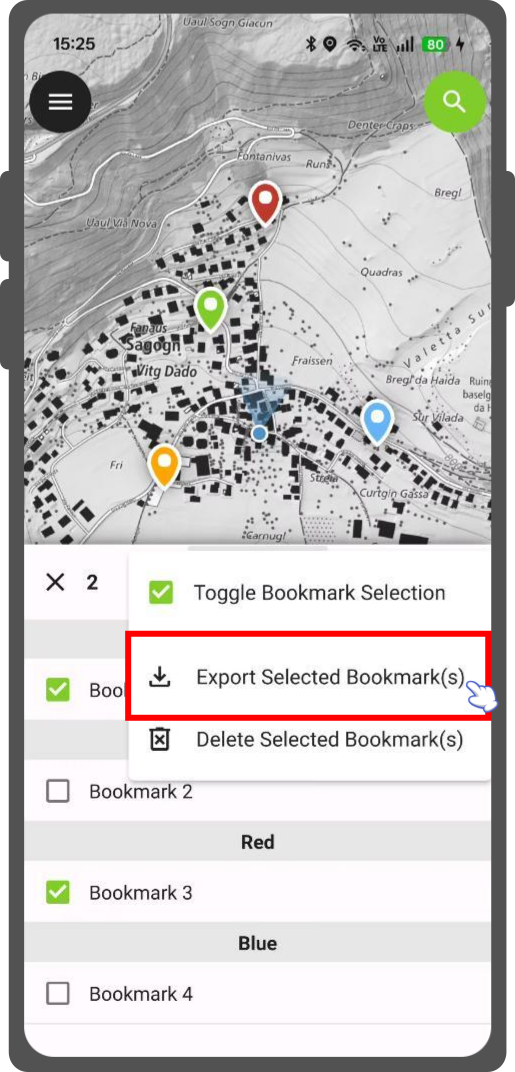
Option 2: To export selected bookmarks
- Long-press on the bookmark(s) you wish to export
- Open the 3-dotted menu (⋮)
- Select Export Selected Bookmark(s).
In both cases QField will compile the point geometries, names, and color into a .gpkg file and prompt you with the Send to... dialog to transfer the file via email, cloud drive, or messaging apps.
Navigating to a bookmark
You can set any bookmark directly as an active navigation destination.
Workflow
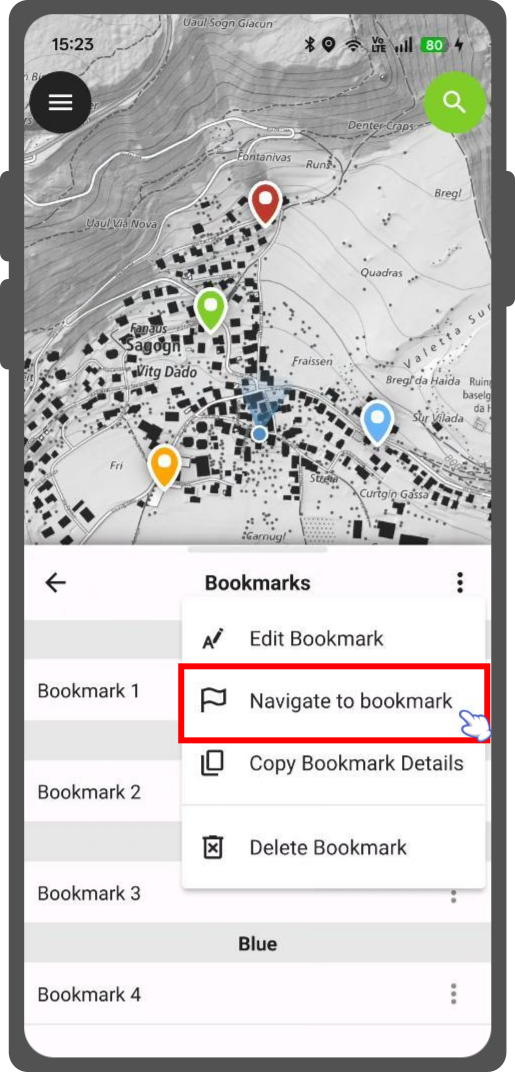
Option 1: Via the Bookmark List
- Open the Side Dashboard
- Tap the 3-dotted menu (⋮) and select Bookmarks.
- Tap the 3-dotted menu (⋮) next to the bookmark name.
- Select Navigate to bookmark (purple navigation flag icon).
Option 2: Via Search (Locator)
- Tap the Search Bar on the map canvas.
- Type the bookmark name (or type
bto filter explicitly for bookmarks). - In the search results list, tap the next to the bookmark name to immediately start navigating, or tap the text to center the map canvas.