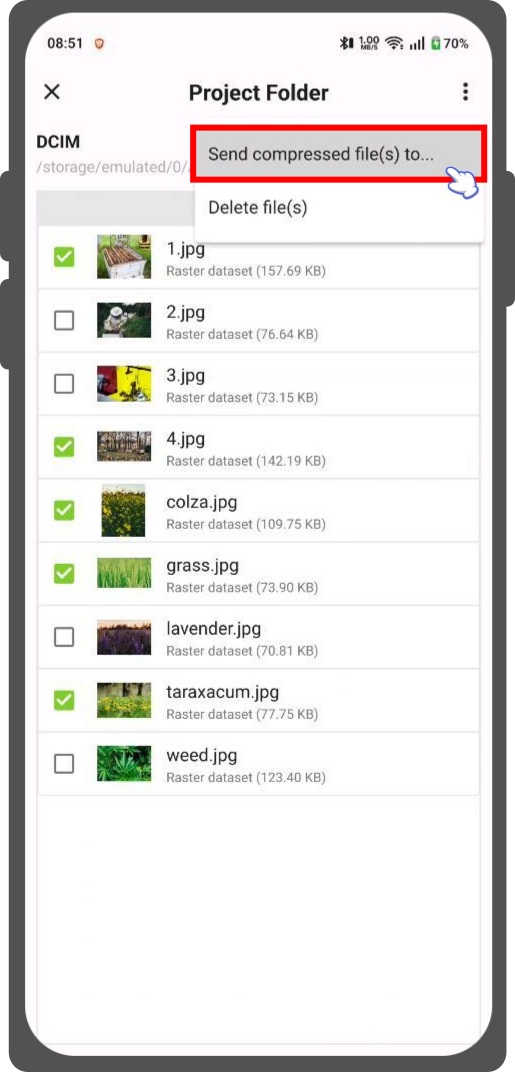
Sélection de projet
The first time you open QField you can choose from three different options or access the in-built sample projects.
- QFieldCloud Projects: With this option you can access your projects from QFieldCloud.
- Local projects and datasets: You can import projects and individual datasets on your device.
- Create new project: You can create a new simple project directly in QField and start mapping away. See here how to do that.
Import and open local projects
In general, when you import projects or individual datasets manually, you have to find the corresponding folder on your device
Example
For Android: <drive>:/Android/data/ch.opengis.qfield/files/QField
When you click on Local projects and datasets, you can choose between the following three options:
- Created Projects: If you have created a project already, you will find it in this folder
- Imported datasets: Sometimes people may just share individual datasets with you, or you may want to add individual layers to your projects on the fly. This is the place where you can save them.
- Imported projects: If you have already imported projects manually via cable, the projects will be visible in this location.
Flux
- To import a New Project/Layer locally, click on the at the bottom right of the screen.
-
There you will have the choice to choose between:
-
Import project from folder: You will be asked to grant permission for QField to read the content of the selected folder.
- Import project from ZIP (archive): You will be asked to grant permission for QField to read the content of the selected folder.
- Import (individual) dataset(s): You will be asked to select one or more files via a system file picker.
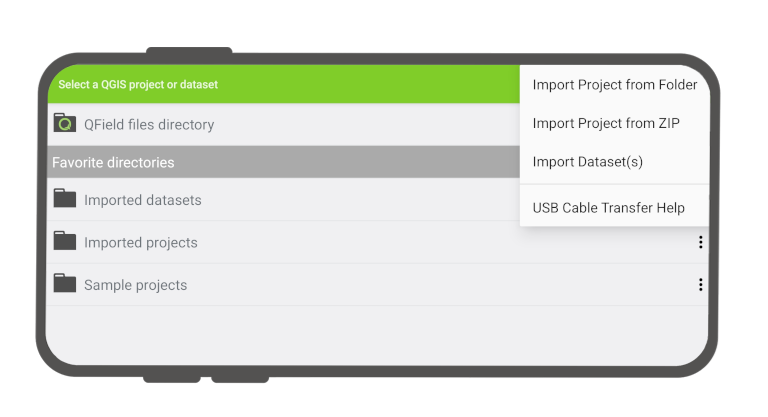
QField File Selector
Warning
- Re-importing a given folder through the drop-down menu action will overwrite preexisting projects given an identical folder name. That allows you to be able to update projects.
- Note that feature editing, addition and deletion will be saved into the imported project's datasets, not in the original folder selected during the import process.
- If you are importing .Shp files or other data that has sidecar files, make sure to also import these.
Dossiers favoris
You may want to revisit a set of projects all the time and set them as your favorites.
Flux
- Open QField.
- On the starting page direct to Local Projects & Datasets
- Tap on the folder where your project is stored.
- Long-press on the project and add it to favorites. To remove an entry from the favorites, long-press on the entry in the favorites list and delete it.
Set default project
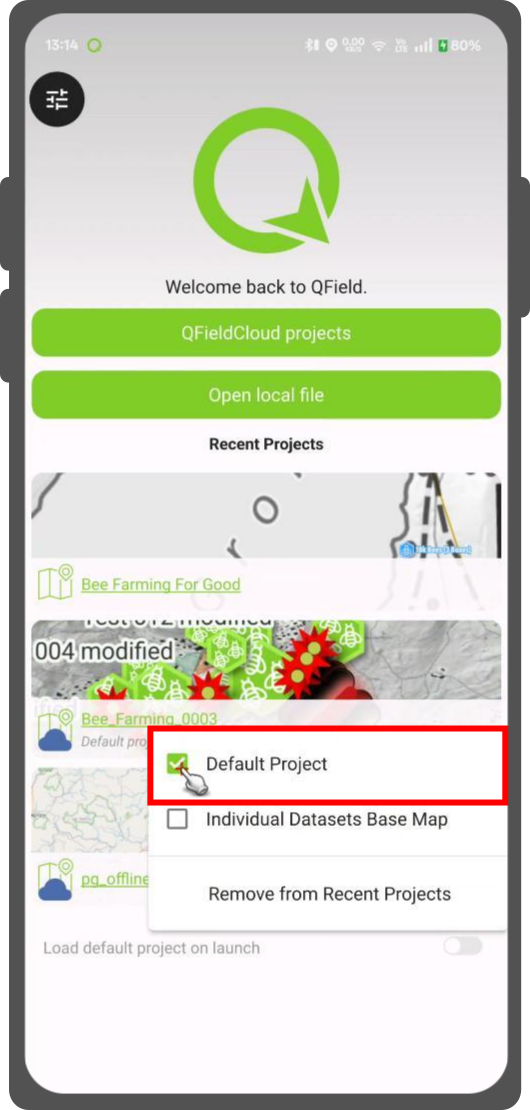
This functionality allows you to set a specific project to be used as the default basemap whenever you open individual datasets. This is useful when a QFieldCloud project should be used as a basemap.
Flux
- In the welcome screen Recent Projects list.
- Press long on the project you wish to set as your default basemap.
- From the context menu that appears, select Set as Default Project.
Basemaps
When you open an individual dataset in an empty project, the basemap selected will depend on:
- Default Project: If you have chosen a Default Project, the basemap within this project will be selected.
- Basemap File: If no default project is set, QField will look for a
basemap.qgsorbasemap.qgzfile within your localQFielddirectory. - OpenStreetMap: If there is no default project or basemap file, the OpenStreetMap XYZ layer will be loaded as the basemap.
Send to & sharing options
Once you are finished with your data collection, you can share and export your data directly from QField in various ways.
- Through [manual cable transfer](../../get-started/tutorials/get-started-qfs.en.md#synchronize-from-qfield)
- Sending data directly to third-party apps
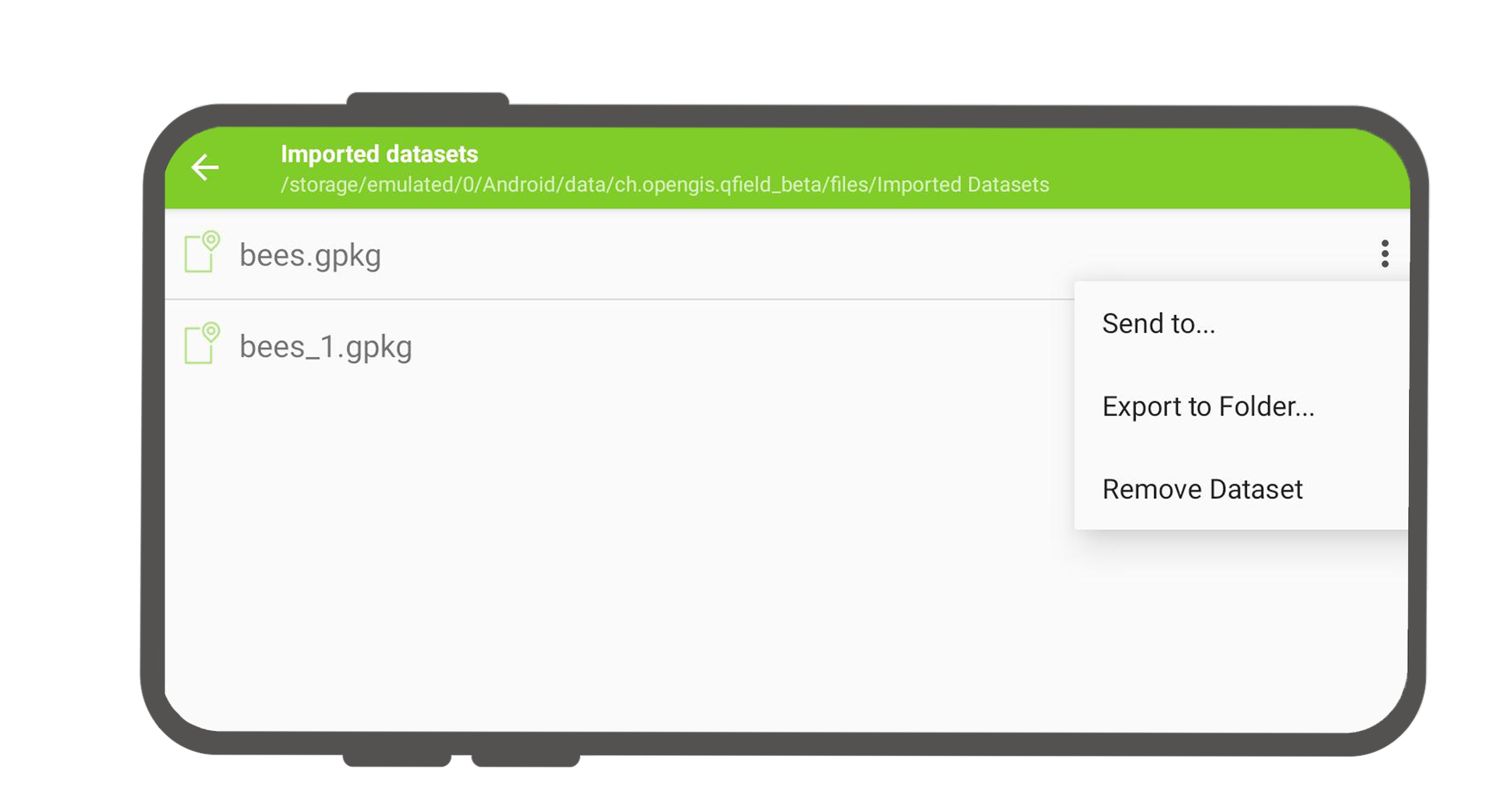
Send to... - As compressed file
- Cloudify: If you want to upload your local project to QFieldCloud you can cloudify it.
Copying modified projects and datasets
You can access your local projects and datasets using a USB cable.
On most devices plugged into a computer via USB cable connection, the path will be <drive>:/Android/data/ch.opengis.qfield/files/ where you will find both the Imported Datasets and Imported Projects folders within which your edited content will be located.
Send compressed file(s)
When managing local datasets inside the file picker screen, you can select one or multiple dataset files to share them simultaneously as a single compressed archive.
Flux
- In the local project files, enter selection mode by long-pressing on an item or tapping the multi-select menu.
- Select the dataset file(s) you wish to export.
- Tap the top menu button (⋮) and select Send compressed file(s) to...
- QField automatically bundles the selected items into a
.ziparchive and triggers the device's native sharing dialog to pick your destination app.