Data Source & Project Paths
Save and store projects and layers using multiple methods and formats. Save all project-related data in the same directory as your QGIS project file unless using Shared Datasets. When working with projects containing many lookup tables, hide specific layers from field collectors to streamline the user experience.
Data source configuration
Project Manager
Hide layer attributes or lookup tables during field data collection by configuring layer capabilities.
Workflow
- In QGIS, navigate to Project > Properties... > Data Sources.
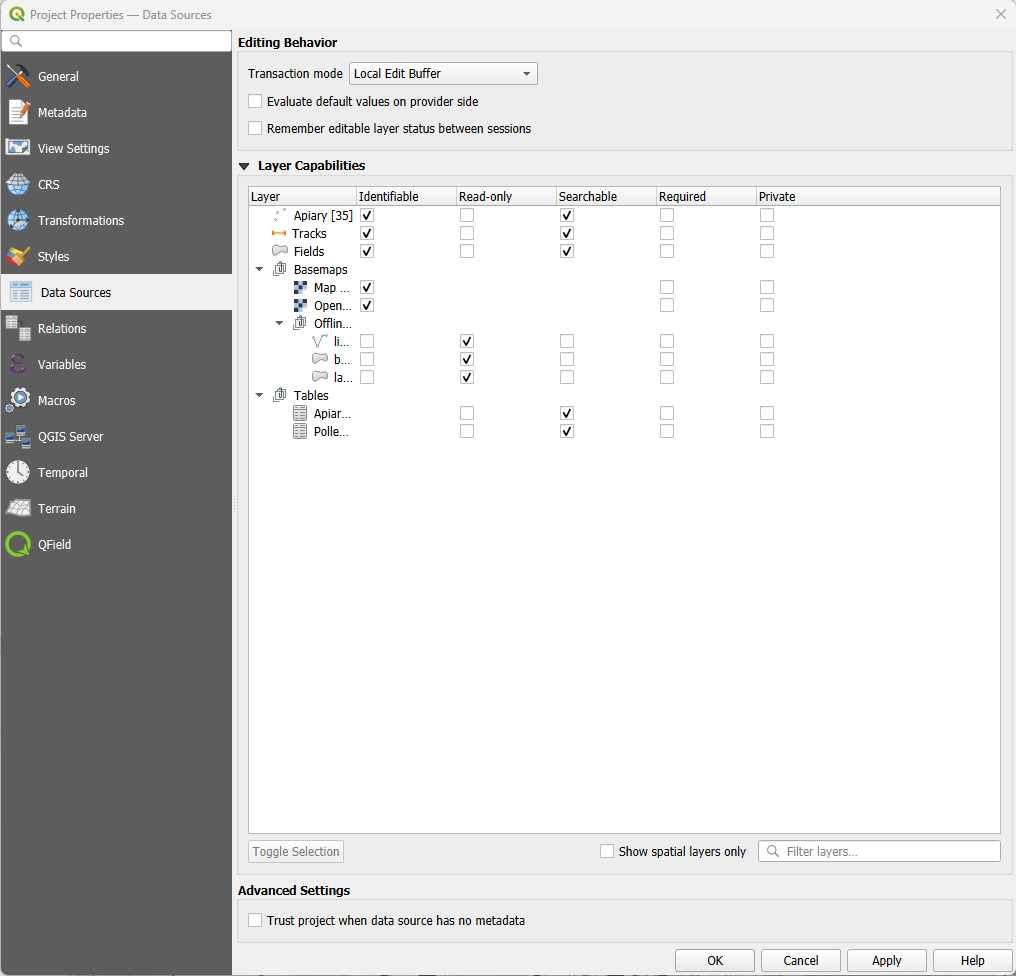
Configure layer capabilities using the following options:
- Identifiable": Unchecking this option prevents features in the layer from being identified in QGIS and QField.
- Read-Only": Checking this option prevents adding, editing, or deleting features in the layer.
- Searchable": Checking this option includes layer attributes in search bar queries and expression evaluations.
- Required": Checking this option keeps the layer visible and prevents users from toggling its visibility on the map canvas.
- Private": Checking this option hides the layer from the project legend and layer tree.
Relative Project Path
Project Manager
Set all file paths for datasets and attachments to relative to make your project portable across devices.
To manually transfer and synchronize your QGIS project to QField or another client, use relative file paths for your QGIS project file (.qgs or .qgz).
Workflow
- Navigate to Project > Properties > General
- Insure that the Save paths is set to Relative

Project Properties - Relative Project Path - Insure also that all required data files are in the same folder as the QGIS project or in a subfolder.
Learn more about preparing projects for fieldwork in the QFieldCloud Get Started Guide or QFieldSync Get Started Guide.